

Buffering is the enemy of a good streaming session. There is nothing more frustrating than settling in to watch a live match or your favorite show on Flix IPTV only to have the stream freeze, drop in quality, or cut out entirely. The good news is that most streaming issues are not caused by the service itself. They are caused by fixable problems on the viewer’s end, ranging from router placement to device settings to network configuration. This guide walks you through every practical step you can take to improve your Flix IPTV streaming speed, eliminate buffering, and enjoy a consistently smooth viewing experience regardless of what you are watching or which device you are using.
Understanding Why Buffering Happens on Flix IPTV
Before fixing a problem, it helps to understand what causes it. Buffering occurs when your device cannot receive and process the incoming stream data fast enough to play it in real time. This creates a gap between what has been received and what needs to be displayed, forcing the player to pause and wait for more data to arrive. On a service like Flix IPTV, buffering is almost always caused by one of four things: insufficient internet speed, an unstable Wi-Fi connection, an overloaded device, or a misconfigured IPTV player. Each of these has a direct and actionable fix, and working through them systematically will resolve the vast majority of streaming issues subscribers experience.
Check Your Internet Speed First
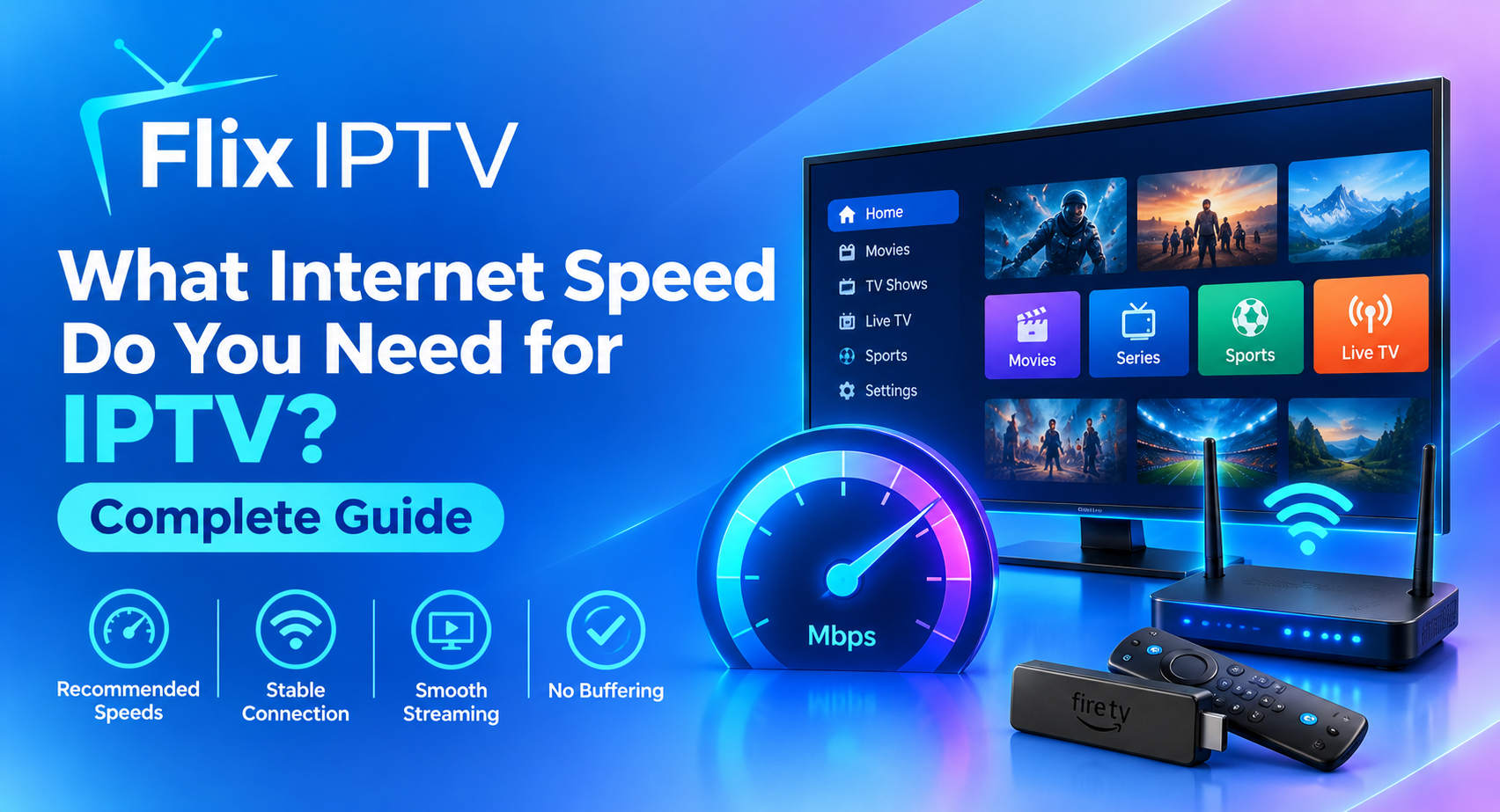
The starting point for any Flix IPTV streaming troubleshooting session should always be an internet speed test. Your connection needs to meet minimum thresholds to stream reliably. For HD content at 1080p, a minimum download speed of 10 Mbps is required. For 4K content, you should aim for at least 25 Mbps. If multiple people in your household are streaming, gaming, or working from home simultaneously, those speeds need to scale accordingly.
Run a speed test using a tool such as Fast.com or Speedtest.net. Do this test on the same device you use for Flix IPTV streaming, and ideally at the same time of day when you usually experience buffering. If your results fall below the recommended thresholds, the issue lies with your internet plan rather than your IPTV setup. Contact your internet service provider to discuss upgrading to a faster package or to troubleshoot any degradation in your current service.
Recommended Internet Speeds for Flix IPTV
- Standard definition streaming: minimum 5 Mbps download speed
- High definition streaming at 1080p: minimum 10 Mbps download speed
- 4K ultra high definition streaming: minimum 25 Mbps download speed
- Multiple simultaneous streams in one household: 50 Mbps or higher recommended
Switch From Wi-Fi to a Wired Ethernet Connection
This single change resolves buffering issues for more Flix IPTV subscribers than any other fix. Wi-Fi is convenient, but it is inherently less stable than a wired connection. Radio signals are affected by physical obstructions like walls and floors, interference from neighboring networks, the distance between your device and router, and the number of devices competing for bandwidth on the same network. All of these factors introduce latency and packet loss, which translate directly into buffering and stream drops.
Connecting your streaming device to your router via an Ethernet cable eliminates every one of these variables. The connection becomes direct, consistent, and significantly faster in practice even if your headline broadband speed stays the same. If running an Ethernet cable to your Smart TV or set-top box is not practical due to room layout, consider a powerline adapter, which sends the internet signal through your home’s existing electrical wiring and gives you a near-wired experience without running cables across the floor.
Optimise Your Router for Better Streaming Performance
Your router is the central hub of your home network, and its performance directly affects every device streaming on it. Several router settings and habits can meaningfully improve your Flix IPTV experience.
Position Your Router Correctly
Place your router in an elevated, central position in your home. Keep it away from thick concrete walls, metal surfaces, microwaves, and other electronic devices that generate interference. The closer your streaming device is to the router, and the fewer physical barriers between them, the stronger and more stable your Wi-Fi signal will be.
Use the 5 GHz Band Instead of 2.4 GHz
Most modern routers broadcast on two frequency bands: 2.4 GHz and 5 GHz. The 2.4 GHz band has a longer range but is slower and more congested because it is shared with dozens of other devices including baby monitors, Bluetooth speakers, and neighboring networks. The 5 GHz band is faster, less congested, and far better suited to video streaming. Connect your Flix IPTV device to the 5 GHz band in your router settings if you are using Wi-Fi.
Restart Your Router Regularly
Routers accumulate memory load and connection data over time, which gradually degrades their performance. A simple weekly restart clears this buildup and often noticeably improves streaming stability. Unplug the router from the power supply, wait thirty seconds, and plug it back in. Allow two full minutes for the connection to re-establish before testing your stream.
Prioritise Streaming Traffic with QoS Settings
Many modern routers include a Quality of Service feature in their settings panel. QoS allows you to assign priority to specific devices or types of traffic on your network. Setting your Flix IPTV device as a high-priority device ensures that streaming traffic receives bandwidth preference over other activity on the network, reducing the impact of other household internet usage on your viewing experience.
Choose the Right IPTV Player for Your Device
The IPTV player application you use has a significant impact on streaming performance. Not all players are created equal, and some handle buffering and cache management far more efficiently than others. For Flix IPTV, the recommended players vary by device, but the most widely used and reliably performing options are IPTV Smarters Pro, TiviMate, and SS IPTV.
If you are unsure which player to use or how to configure it correctly for your specific device, the Flix IPTV installation guide provides step-by-step instructions covering setup on every major platform. Following the recommended setup process ensures your player is configured correctly from the start, which eliminates a common source of avoidable streaming problems.
Adjust the Buffer Size in Your Player Settings
Most IPTV players allow you to manually adjust the buffer size within the application settings. Increasing the buffer gives the player more data to work with before it begins playback, which smooths out minor fluctuations in your network speed. If you are experiencing occasional freezes or short interruptions rather than sustained buffering, increasing the buffer size in your player settings is often the most targeted and effective fix.
Keep Your Player Application Updated
Developers regularly release updates to IPTV players that improve performance, fix bugs, and optimise memory usage. Running an outdated version of your player is one of the most overlooked causes of streaming problems. Check for available updates in your device’s app store or the player’s own settings menu at least once a month.
Clear Cache and Free Up Device Memory
Your streaming device accumulates temporary data in the form of cached files over time. On devices with limited storage such as Amazon Firestick or older Android boxes, this cache can consume enough memory to noticeably degrade streaming performance. Clearing the cache of your IPTV player application and any supporting applications on your device frees up memory and often resolves sluggish or buffering streams without any other changes needed.
On Android-based devices, navigate to Settings, then Applications, then find your IPTV player and select Clear Cache. Do this every two to four weeks as part of regular device maintenance. On Amazon Firestick specifically, also clear the cache for the Downloader app and any other streaming applications you have installed.
Close Background Applications
Applications running in the background consume processor resources and memory even when you are not actively using them. Before launching Flix IPTV, close all other applications on your device. On Firestick devices, hold the Home button, select App Switcher, and close every application currently open. This gives your IPTV player the maximum available resources to deliver a clean stream.
Use a VPN Strategically
A Virtual Private Network, commonly referred to as a VPN, can both help and hinder your Flix IPTV streaming experience depending on how it is used. In some cases, particularly where internet service providers throttle streaming traffic during peak hours, a VPN can actually improve speeds by routing your traffic through a less congested pathway that your ISP is not monitoring or limiting.
However, using a VPN server that is geographically distant from your actual location adds latency, which can worsen streaming quality. If you use a VPN with Flix IPTV, always select a server that is as close to your physical location as possible, and choose a VPN provider with a strong track record of fast, stable connections for streaming use cases. If you are not experiencing ISP throttling, connecting without a VPN will generally produce better results.
Select the Correct Stream Quality for Your Connection
Flix IPTV offers many channels in multiple quality variants, typically labelled as SD, HD, and FHD or 4K. Selecting a stream quality that exceeds what your current internet connection can comfortably handle is a guaranteed path to buffering. If your connection is experiencing temporary congestion or running below its usual speed, manually switching to a lower quality stream is a quick and effective way to maintain uninterrupted playback.
The channel list shows quality options available for different content categories, allowing you to plan your viewing based on what your connection can reliably support. During peak household usage hours such as early evenings, temporarily stepping down from 4K to 1080p is a practical way to maintain a smooth experience while other devices on your network are also active.
Troubleshoot Specific Devices for Better Performance
Different streaming devices have different performance characteristics, and some require device-specific attention to deliver the best Flix IPTV experience.
Amazon Firestick
The Firestick is one of the most popular devices for Flix IPTV but it also has limited RAM which makes it more susceptible to performance degradation over time. Beyond clearing cache and closing background apps, consider using a Firestick maintenance application to automate regular cleanup. Also ensure your Firestick firmware is fully updated, as Amazon regularly releases performance improvements through system updates.
Android TV Boxes
Android boxes generally offer more processing power than Firestick devices and handle IPTV streaming well. Ensure you are running a current version of Android TV and that your IPTV player is updated. If your Android box allows it, disable any manufacturer bloatware applications that run at startup and consume memory without providing value to your streaming setup.
Smart TVs
Smart TVs with built-in IPTV player support are convenient but often run older operating systems that receive infrequent updates. If your Smart TV’s built-in player performs poorly, consider connecting an external Android box or Firestick to the TV’s HDMI port instead. This gives you a more powerful and up-to-date processing environment for your Flix IPTV streams.
Take Advantage of Flix IPTV Support Resources
If you have worked through the steps in this guide and are still experiencing persistent buffering or streaming issues, the most efficient next step is to reach out directly for help. Flix IPTV maintains a detailed support infrastructure that is specifically designed to help subscribers resolve technical problems quickly.
The FAQ section covers the most commonly reported streaming issues and their solutions in clear, straightforward language. Many subscribers find the answer they need there without needing to contact support directly. For issues that go beyond what the FAQ covers, the Flix IPTV contact page connects you with a support team that is knowledgeable about technical configuration and account-related queries alike. Response times are fast and the assistance is practical rather than generic.
Review Your Subscription and Explore Available Plans
Sometimes the simplest explanation for a degraded streaming experience is that your current subscription plan does not match your current viewing needs. If your household has grown, if you have added more streaming devices, or if your usage patterns have shifted significantly, it may be worth reviewing what is available. The Flix IPTV pricing plans page outlines the current subscription options clearly. Upgrading to a plan that better matches your household’s usage can resolve access issues and ensure you are getting the best possible experience from the service.
Summary: Your Complete Flix IPTV Buffering Fix Checklist
- Run a speed test and confirm your connection meets the minimum requirements for your chosen stream quality
- Switch from Wi-Fi to a wired Ethernet connection where possible
- Restart your router weekly and position it centrally in your home
- Connect your streaming device to the 5 GHz band on your router
- Enable Quality of Service settings on your router to prioritise streaming traffic
- Use a recommended IPTV player and follow the official installation guide for correct configuration
- Increase your player’s buffer size in the application settings
- Keep all applications and device firmware updated to the latest versions
- Clear the cache of your IPTV player every two to four weeks
- Close all background applications before launching Flix IPTV
- Select a stream quality that matches your current connection speed
- Use a nearby VPN server only if your ISP is throttling streaming traffic
- Contact the support team via the contact page if issues persist after working through these steps
Streaming issues are almost always solvable. The combination of a stable internet connection, a correctly configured IPTV player, a well-maintained device, and an optimised home network is enough to deliver smooth, high-quality playback on Flix IPTV for every channel in the library. Take the time to work through each fix in this guide and your viewing experience will reflect the quality the service is built to deliver.
For everything from channel browsing and subscription pricing to setup help and direct support, every resource you need is available at flix-iptv.shop.