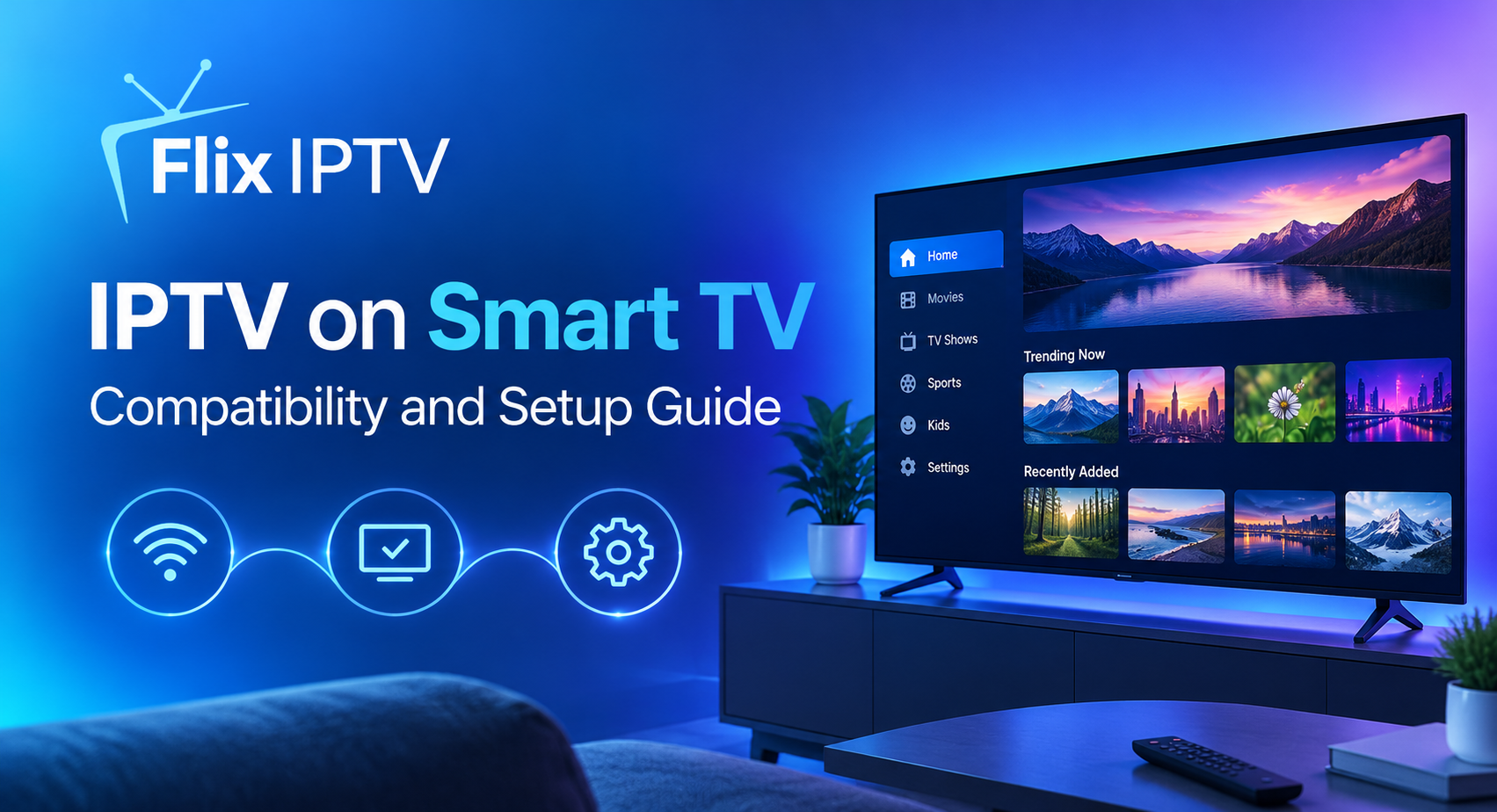

From first install to live streaming in under ten minutes. This guide walks you through every step on every major Smart TV platform, with no technical experience required.
Samsung Tizen
LG webOS
Android TV
Google TV
Amazon Fire TV
Key Facts
10Minutes to set up
4KStream quality
9Clear steps
TV
5+TV Platforms
HDMinimum Quality
0Contracts Needed
1Subscription Only
The Smart TV has become the primary screen in most homes, and the ability to stream live television directly to it through an IPTV subscription rather than a cable or satellite contract has changed how millions of people watch. Flix IPTV gives you access to thousands of live channels across sport, entertainment, news, and international content, all delivered to your Smart TV through the SS IPTV application. Setting it up correctly takes under ten minutes on any supported platform. This step-by-step guide walks you through every stage of the process, from choosing your subscription to watching your first channel, across Samsung, LG, Android TV, Google TV, and Amazon Fire TV.
10Min Setup
5+TV Platforms
4KStream Quality
9Clear Steps
01
Before You Begin
What You Need Before Starting the Setup
Before opening the app store on your Smart TV, three things need to be in place: an active Flix IPTV subscription with your M3U URL ready, a Smart TV connected to the internet, and access to the correct app store for your platform. Having each of these confirmed before you start means the installation itself runs without interruption.
Pre-Setup Requirements
An active Flix IPTV subscription. Visit the website, select your plan, and complete signup. Your M3U playlist URL arrives by email within minutes and is the key piece of information you will enter during installation.
A Smart TV connected to the internet. A wired ethernet connection is recommended for the best streaming performance, but a stable home Wi-Fi connection works well for most households. Confirm your TV can reach the internet before beginning installation.
Access to the app store on your Smart TV. This means the Samsung Smart Hub, LG Content Store, Google Play Store on Android TV, or Amazon Appstore on Fire TV. A signed-in account on these stores is required for Samsung and Android TV app installations.
Your M3U URL accessible on a second screen — typically your smartphone — while you type it into the television. This prevents needing to switch back to your email mid-installation.
A note on internet connection: wired ethernet is meaningfully better than Wi-Fi for IPTV streaming, particularly for Full HD and 4K channels. Most Smart TVs have an ethernet port on the back panel. If running a cable to your TV is practical in your home, doing so before beginning this setup is the single most impactful step you can take for long-term streaming quality. If wired is not possible, position your router as close to the television as is practical.
02
Subscribe First
Choose Your Plan and Get Your M3U URL
Every Flix IPTV installation starts at the pricing plans page. Subscription tiers are available monthly, quarterly, and annually, with longer terms offering a lower per-month cost. All tiers include the complete channel catalog from day one with no content add-ons or regional restrictions applied.
After completing signup, your welcome email contains your M3U playlist URL, your account credentials, and links to the installation guide. This email is everything you need. The M3U URL is the address that the SS IPTV application uses to load your channel list — it is unique to your account and should be kept private. Open this email on your smartphone before you pick up the TV remote, so the URL is ready to read and type when the installation reaches that stage.
Your M3U URL is the only item you will type that requires care. Enter it exactly as it appears in your welcome email — a single incorrect character is the most common cause of a playlist failing to load.
03
Platform Overview
Setup on Each Smart TV Platform
The SS IPTV application is available on all five major Smart TV platforms and the installation process is consistent across each of them. The cards below summarise the key approach for each platform before the detailed nine-step guide that follows.
Tizen OS
Samsung Smart TV
Install SS IPTV directly from the Samsung Smart Hub. No sideloading required. A Samsung account must be signed in on the TV to access the app store. Fully supported on Samsung TVs from 2017 onwards.
webOS
LG Smart TV
Install SS IPTV from the LG Content Store. Full support on webOS 4.0 and above (2019 models and later). Earlier models may have limited functionality and an external streaming device may be preferable.
Android TV / Google TV
Android & Google TV Devices
Install the full SS IPTV version from the Google Play Store. Includes Sony Bravia Android TVs, Chromecast with Google TV, and Nvidia Shield. The most complete app store version is available here without restrictions.
Fire OS
Amazon Fire TV
Install SS IPTV from the Amazon Appstore without enabling developer mode. Works on all Fire TV Stick models and Fire TV Cube. Fully compatible and available directly without any additional configuration steps.
04
Full Installation
The Complete Nine-Step Installation Process
Follow these nine steps in sequence for a complete Flix IPTV installation on your Smart TV. The official SS IPTV installation guide provides screenshots and additional detail for each step if you need a visual reference at any point during the process.
01
Open the App Store
Navigate to the app store on your Smart TV: Samsung Smart Hub, LG Content Store, Google Play Store, or Amazon Appstore. This is usually accessible from the home screen or the main navigation bar at the top or bottom of your television’s interface. Ensure you are signed in to an account on the store before proceeding.
02
Search for SS IPTV
Use the app store’s search function to find SS IPTV. Type the name using the on-screen keyboard or use voice search if your remote supports it. Locate SS IPTV in the results — it is listed as an IPTV player application — and select Install or Get to begin downloading it to your television.
03
Install and Launch SS IPTV
The installation download takes one to three minutes. Once complete, open SS IPTV from the app store or from your television’s installed applications section. Accept any permissions prompts on the first launch. If a tutorial or welcome screen appears, you can dismiss it to reach the main application interface.
04
Go to Playlist Settings
Inside the SS IPTV interface, navigate to the settings or content area. Look for an option labeled Remote Playlist, My Playlists, Add Source, or a plus icon. This is the section where you will enter the M3U URL from your Flix IPTV welcome email. Select this option to open the playlist entry screen.
05
Enter Your M3U URL
Using the on-screen keyboard, type your M3U playlist URL exactly as it appears in your welcome email. The URL is case-sensitive, so match capital and lowercase letters carefully. Having your email open on your smartphone while typing makes this significantly easier. After entering the full URL, confirm or save to proceed to the loading stage.
06
Wait for Channels to Load
After saving the M3U URL, SS IPTV will connect to the Flix IPTV servers and retrieve your full channel catalog. This process takes between 15 seconds and 2 minutes depending on your connection speed and catalog size. A loading progress indicator will be visible. Do not close or navigate away from the application while loading is in progress.
07
Test a Channel
Once loading completes, navigate to any live sports or news channel from the channel catalog and select it to play. Confirm the stream opens and runs in HD without buffering. A successful test confirms your M3U URL is working correctly and your internet connection is delivering sufficient bandwidth for live streaming.
08
Configure the EPG
In the SS IPTV settings, find the EPG or Electronic Programme Guide section and enter your EPG URL, which is available from your Flix IPTV account details. Adding the EPG enables programme schedule information, current and upcoming show titles, and timing data to appear in the channel guide. This makes navigating the catalog significantly easier for daily use.
09
Save Your Favourite Channels
Browse through the channel categories and mark the channels you use most often as favourites. This is typically done by long-pressing a channel name or selecting a star icon. A curated favourites list means every subsequent viewing session begins with a short personal list rather than requiring a search through the full catalog — making day-to-day use considerably faster.
05
Optimise
Improving Stream Quality After Installation
Once Flix IPTV is installed and streaming successfully, three optimisation steps can noticeably improve the consistency of your experience, particularly for Full HD and 4K channels and during periods of peak household internet usage.
Connection Upgrade
Switch your Smart TV from Wi-Fi to a wired ethernet connection if possible. A Cat5e or Cat6 cable from the router to the TV’s ethernet port eliminates signal variability entirely and guarantees consistent bandwidth for live streams. Even a short cable run makes a measurable difference to HD stream stability over a full evening of viewing.
Buffer Size Setting
In the SS IPTV player settings, locate the buffer size option and increase it from the default to the largest available setting. A larger buffer pre-loads more stream data, which prevents brief pauses caused by minor network fluctuations. On TVs with less RAM, a moderate rather than maximum increase may produce the best balance of stability and responsiveness.
Stream Quality Selection
When multiple quality versions of a channel are listed in the catalog (SD, HD, FHD, 4K), always select the highest level your connection consistently supports. For connection speeds between 15 and 30 Mbps, Full HD 1080p is the appropriate choice. For connections above 30 Mbps with a stable wired or strong Wi-Fi link, 4K feeds where available will deliver the best picture on a compatible display.
◆
06
Platform Tips
Tips for Samsung, LG and Android TV
Each Smart TV operating system has specific characteristics that affect the installation and streaming experience. The following notes address the most commonly encountered platform-specific questions for the three most widely used Smart TV systems.
Samsung Tizen Tips
Ensure the Smart Hub is fully loaded and your Samsung account is signed in before searching for SS IPTV. App store access on Samsung TVs requires an active signed-in Samsung account. If the search yields no results, try adjusting the TV region in the system settings, as app catalog availability varies by region in some cases.
Samsung TVs from 2017 onwards are fully compatible with the current version of SS IPTV. If you have an older Samsung Smart TV and encounter compatibility issues, check whether your model year is listed as supported in the SS IPTV documentation or consider connecting a Fire Stick or Android TV box to the HDMI port as an alternative approach.
LG webOS Tips
LG Smart TVs running webOS 4.0 and above — corresponding to 2019 models and later — offer full SS IPTV compatibility with the LG Content Store version of the application. Installation on these models is straightforward and requires no workarounds.
On older LG Smart TVs running webOS 3.x, SS IPTV functionality through the Content Store may be reduced. The LG Developer Mode installation method is an alternative but requires the application to be reinstalled every 50 hours of active use. For older LG model owners, connecting an external Android TV box or Amazon Fire Stick to the HDMI input is typically a more reliable and convenient long-term solution.
Android TV and Google TV Tips
Android TV and Google TV devices offer the most straightforward SS IPTV installation of any platform because the full-featured Google Play Store version is available without restrictions or workarounds. This includes Sony Bravia TVs running Android TV, Chromecast with Google TV, Nvidia Shield, and any Smart TV or streaming box running Android TV OS.
If SS IPTV is not appearing in Google Play Store search results on your device, check that your Google account region matches the country where you are installing the app. Account region settings can be adjusted through the Google account management page on a desktop browser without affecting other services.
On Google TV specifically, pin SS IPTV to the home screen apps row for faster daily access. Long-press the SS IPTV icon after installation and select Add to Home from the resulting context menu to make it permanently accessible from the top of the Google TV home screen.
07
Troubleshooting
Common Issues and How to Fix Them
The majority of installation issues have straightforward solutions once the underlying cause is identified. The six cards below address the most frequently encountered problems during and after Flix IPTV Smart TV setup.
Problem
Channels Not Loading After Entering M3U URL
Verify the M3U URL is entered exactly as it appears in the welcome email. Check for accidental spaces at the start or end of the URL, incorrect capitalisation, or transposed characters. Copy it character by character from the email rather than attempting to type it from memory.
Problem
Stream Buffering or Pausing Frequently
Switch from Wi-Fi to a wired ethernet connection as the first step. If wired is not possible, move the router closer to the TV. Increase the SS IPTV buffer size in the player settings. Confirm your connection speed exceeds 15 Mbps for Full HD streaming using a speed test from the TV itself.
Problem
SS IPTV Not Found in App Store Search
Check the TV’s region setting and ensure the app store account is signed in and active. On Samsung, try changing the Smart Hub region. On LG, confirm the Content Store has fully loaded. On Android TV, verify the Google account region. If the app remains unavailable, an external streaming device connected via HDMI is the recommended alternative.
Problem
EPG Not Showing Programme Information
Confirm the EPG URL is entered correctly in the SS IPTV settings. EPG data can take up to five minutes to populate after first entry. If schedule data remains absent after a full application restart, verify the EPG URL against your Flix IPTV account details and re-enter it if necessary.
Problem
Picture Quality Lower Than Expected
Check whether multiple quality versions of the channel are listed in the catalog. Select the HD or FHD version explicitly rather than relying on automatic selection. Run a speed test from the Smart TV to confirm connection speed is adequate for the quality level you have selected. Switch to ethernet if Wi-Fi speed is inconsistent.
Problem
Application Crashes or Freezes on Launch
Clear the SS IPTV application cache through the Smart TV app management settings and restart the application. If crashes continue, uninstall and reinstall SS IPTV from the app store. Your M3U URL will need to be re-entered after reinstallation but all other settings will reset to defaults, which often resolves persistent stability issues.
08
Channel Navigation
Using the Channel Guide on Your Smart TV
With installation complete and the full Flix IPTV channel catalog loaded, knowing how to navigate the SS IPTV guide efficiently makes the daily viewing experience considerably smoother on a Smart TV where remote-control navigation is slower than touchscreen interaction.
The SS IPTV channel guide organises content by category. Sports, Entertainment, News, Movies, Kids, and regional groups are the standard categories, and within each category channels are listed alphabetically. Using the directional buttons on your remote to navigate to the correct category first, then browsing within it, is faster than scrolling through the full unsorted catalog from top to bottom. Voice search on Android TV, Google TV, and newer Fire TV remotes can locate any channel by name in seconds — this is the fastest navigation method available and worth using if your remote supports it.
- Filter by category before browsing to reduce the number of channel entries to scroll through on any given search.
- Use voice search via the TV remote as the fastest method for finding a specific channel by name — it is significantly quicker than the on-screen keyboard.
- Build your favourites list during the first week of use so that daily navigation involves only a short personal shortlist.
- The EPG guide view shows upcoming live events and scheduled programmes up to seven days ahead on supported channels.
- If a channel shows as offline, check whether the same channel is listed with an alternative backup feed in the catalog and try that version first before contacting support.
09
Support
Getting Help From Flix IPTV
The Flix IPTV FAQ page covers the most common questions that arise during Smart TV setup and after installation, including playlist management, EPG configuration, simultaneous device usage across multiple TVs, and subscription renewal. It is the fastest first resource to consult for any question, and it is worth bookmarking on your smartphone before you begin the installation process so it is available at any point during setup.
For questions that require direct assistance, the Flix IPTV support team provides prompt, specific guidance for every Smart TV platform and model. The team is familiar with the platform-specific details that make Samsung, LG, Android TV, and Fire TV installations different from one another and can diagnose issues quickly based on the device type and the symptoms described. Responses arrive promptly, and most installation queries are fully resolved within a single support exchange.
Complete Installation Checklist
- Subscribe to Flix IPTV and save the welcome email with your M3U URL before touching the TV remote.
- Connect your Smart TV to the router via ethernet cable before opening SS IPTV for the best streaming performance.
- Install SS IPTV from the correct app store for your platform and confirm the installation completes without errors.
- Enter the M3U URL carefully in the playlist section, checking each segment of the URL against the welcome email.
- Wait for the full channel catalog to finish loading before attempting to open any channel.
- Configure the EPG URL in SS IPTV settings to enable schedule information across the guide.
- Test at least three channels from different categories to confirm stream quality is correct before regular use.
- Add your most-used channels to the favourites list to make daily navigation immediate from the first session onwards.
LIVE
Flix IPTV • Smart TV • Start Streaming Today
Your Smart TV Is Ready.
Are You?
Subscribe to Flix IPTV and follow this guide to be streaming thousands of live channels on your Smart TV in under ten minutes. No contracts, no satellite dish, no complications.
Pricing PlansInstall GuideAll ChannelsFAQContact Us FlixIPTV HomeChannelsPricingInstallFAQContact