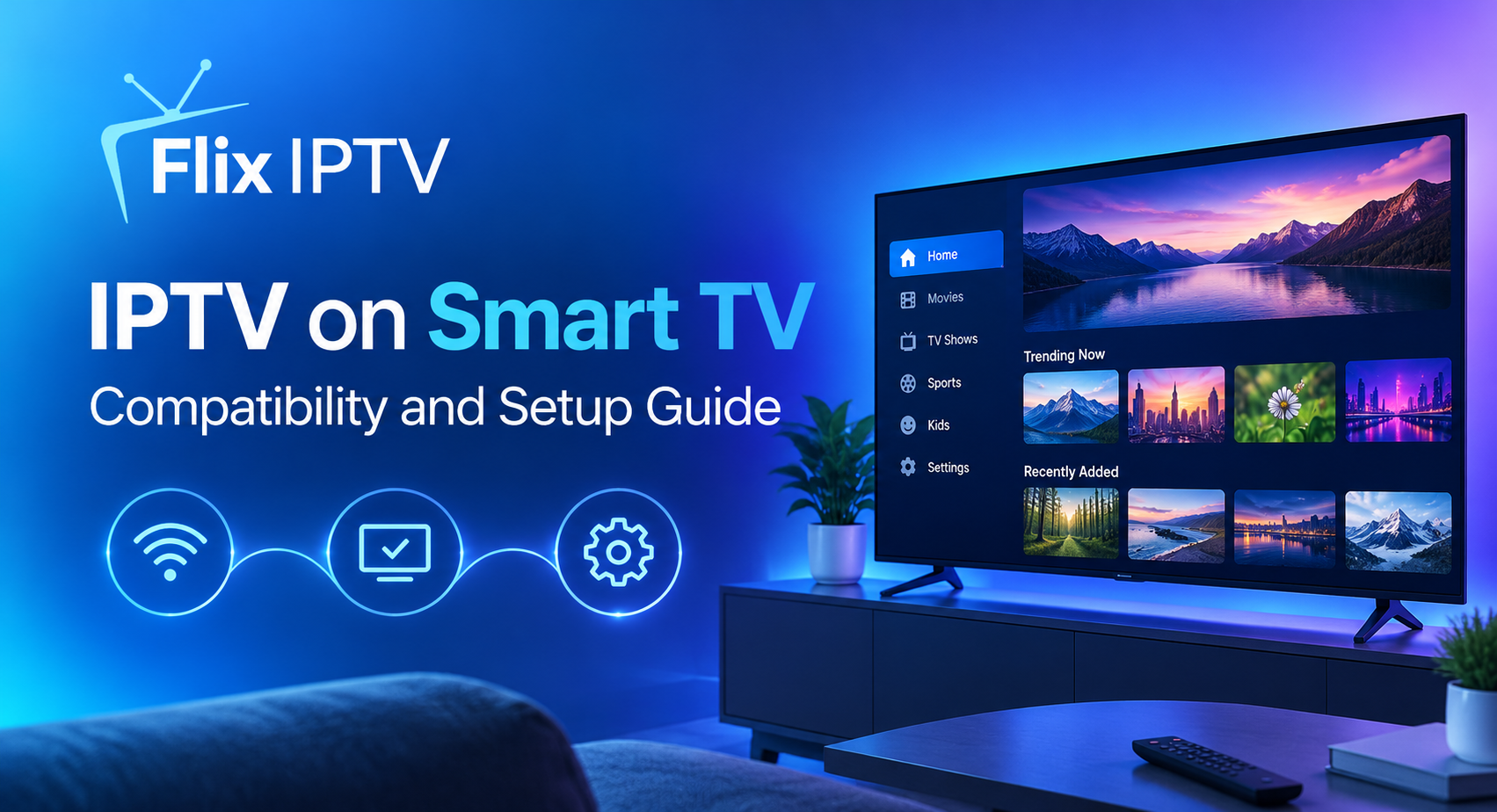

This guide covers everything you need to install IPTV on Samsung Smart TV and start streaming thousands of live channels in Full HD — in under ten minutes, with no satellite dish, no cable box, and no long-term contract. With an active Flix IPTV subscription and your television connected to the internet, the entire process from app installation to watching your first live channel takes less time than most people expect. Every step is covered here in plain language — from confirming your Samsung model is supported, to loading your M3U playlist, configuring the programme guide, and resolving the most common setup questions.
Is Your Samsung Model Ready for the Installation?
The SS IPTV application — which is the player used to stream Flix IPTV on Samsung televisions — is available directly from the Samsung Smart Hub without sideloading or any workarounds. The great majority of Samsung Smart TVs manufactured from 2017 onwards running Tizen OS are fully supported. Spending thirty seconds confirming your model before you begin avoids any unexpected issues during the process.
- 2017 – 2019 (Tizen 3.0 – 4.0) — Fully compatible. SS IPTV available from Smart Hub. HD and FHD streaming supported across all models in this range.
- 2020 – 2022 (Tizen 5.0 – 6.5) — Fully compatible with HD, FHD and 4K streaming. Smart Hub app store access works without any additional configuration.
- 2023 – 2025 (Tizen 7.0 – 8.0) — Fully compatible. The most recent models offer the best SS IPTV performance with native 4K stream support.
- 2014 – 2016 (Older Tizen) — Limited compatibility. Some older models may not support the current SS IPTV version. An Amazon Fire Stick connected to the HDMI port is the recommended alternative for these televisions.
To check your TV’s model year and Tizen version, press the Home button on your remote, navigate to Settings, select Support, and then select About This TV. Any model with a year suffix of 17 or later in the model number is fully supported for this installation.
What You Need Before Getting Started
Three things need to be in place before you begin: an active Flix IPTV subscription with your M3U URL accessible, a Samsung account signed in on the television, and a confirmed internet connection. Having all three confirmed before picking up the remote means the setup runs from first step to last without interruption.
An active Flix IPTV subscription. Visit the website, choose your plan, and complete the signup. Your M3U playlist URL arrives by email within minutes of subscribing — keep this email open on your smartphone throughout setup so the URL is immediately at hand when you need to enter it into the television.
A Samsung account signed in on the TV. The Samsung Smart Hub requires an active Samsung account to access the app store and download applications. If you have not yet signed in, press Home on the remote, go to Settings, select General, and then Samsung Account to create or log in to an account before proceeding with the installation.
An active internet connection. Either wired ethernet — recommended for the best streaming stability — or Wi-Fi. You can confirm the connection status by pressing Home, going to Settings, selecting General, and then Network. A wired ethernet connection consistently outperforms Wi-Fi for live channel streaming, particularly for HD and 4K content and during long sports fixtures. Most Samsung Smart TVs have an ethernet port on the rear panel.
Choose Your Flix IPTV Subscription Plan
The setup process begins at the Flix IPTV pricing plans page. Three tiers are available — monthly, quarterly, and annual — and every tier provides full access to the complete channel catalog from the first day, with no sports add-ons or content extras required separately.
The monthly plan suits first-time subscribers who want maximum flexibility. The quarterly plan covers a full sports season and offers better per-month value for viewers following a seasonal competition. The annual plan provides the lowest effective monthly cost and ensures uninterrupted access across a complete year — the best choice for households using Flix IPTV as their primary television service.
After completing signup, your welcome email arrives within minutes containing your M3U playlist URL, account credentials, and links to platform-specific installation guides. The M3U URL is the key piece of information you will need during setup — keep it visible on your phone throughout the process, as you will type it character by character into the television using the on-screen keyboard.
How to Install IPTV on Samsung Smart TV: 9 Steps
Follow these nine steps in order for a complete installation. The SS IPTV installation guide on the Flix IPTV website provides platform-specific screenshots for each step if a visual reference would help at any point.
- Open the Samsung Smart Hub — Press the Home button on your remote — the house icon typically in the centre. The Smart Hub home screen opens at the bottom of the display showing your apps row and navigation options.
- Navigate to the Apps Section — From the Smart Hub home screen, navigate to the Apps tile in the bottom navigation row. It may be labelled Apps or shown as an app store icon. Select it to open the full Samsung application catalog.
- Search for SS IPTV — Inside the Apps section, navigate to the search icon — a magnifying glass typically in the top-right corner. Select it and use the on-screen keyboard to type SS IPTV. Press the confirm or search button to display the results.
- Select and Install SS IPTV — Locate SS IPTV in the search results — it is listed as an IPTV media player. Select it to open the application details page, then select Install. The download and installation takes one to three minutes. A progress indicator is visible throughout.
- Launch the Application for the First Time — Once installation is complete, select Open, or navigate back to your Smart Hub home screen where SS IPTV will now appear in your apps row. Open the application and accept any permissions or terms of service prompts on the first launch to reach the main interface.
- Go to Remote Playlist Settings — Inside SS IPTV, navigate to the settings or content management section. Look for an option labelled Remote Playlist, Add Playlist, or My Playlists — the exact label varies slightly by version but all lead to the same URL entry screen.
- Enter Your M3U Playlist URL — Using the on-screen keyboard, type your M3U URL exactly as it appears in your Flix IPTV welcome email. The URL is case-sensitive — match uppercase and lowercase letters precisely with the email visible on your phone. After entering the full URL, select Confirm or Save to proceed.
- Wait for the Channel Catalog to Load — After saving the URL, SS IPTV retrieves the full Flix IPTV channel catalog. This takes between fifteen seconds and two minutes. Do not close or navigate away from the application while loading is in progress, as this interrupts the retrieval and requires it to be restarted.
- Test a Channel and Confirm It Works — Once loading completes, select any live sports or news channel and begin playback. A stream opening in HD without buffering confirms the installation is complete and the full catalog is ready to use.
Post-Installation Setup: EPG, Quality and Favourites
With streaming up and running on your television, three additional steps — configuring the Electronic Programme Guide, optimising stream quality settings, and building a favourites list — transform a functional installation into a polished daily viewing experience.
Configure the Electronic Programme Guide
In the SS IPTV settings, locate the EPG section and enter the EPG URL from your Flix IPTV account details. The Electronic Programme Guide overlays schedule information — channel names, current show titles, start and end times, and upcoming content — across the full channel guide. On a Samsung television with a remote control, an active EPG transforms channel navigation from a plain list into a proper programme guide, making it significantly faster to browse thousands of channels. EPG data takes up to five minutes to fully populate after the URL is first entered. If schedule information does not appear immediately, restart SS IPTV and the data will load from the next session onwards.
Buffer Size and Stream Quality
In the SS IPTV player settings, increase the buffer size from its default value to a higher setting. A larger buffer pre-loads more stream data, smoothing out minor fluctuations in connection speed and reducing brief quality drops during HD and 4K streams — particularly valuable during long live sports fixtures. You can check your current download speed using a free tool such as Speedtest by Ookla — run the test directly on your Samsung TV for the most accurate bandwidth reading at that location.
When multiple quality versions of a channel appear in the catalog, always select the highest tier your connection reliably supports. For connections between 15 and 25 Mbps, Full HD 1080p is the appropriate selection. Above 30 Mbps on a stable wired connection, 4K channels deliver the best picture quality on compatible Samsung QLED or OLED displays.
Build Your Favourites List
Browse the channel categories and mark your most-used channels as favourites. On SS IPTV for Samsung, long-press a channel name and select the favourite or bookmark option from the context menu. A personal favourites list means every session begins with instant access to your preferred sports, news, and entertainment channels — without navigating the full catalog each time.
Samsung-Specific Tips for Better Streaming Performance
Tizen OS has a number of characteristics that are worth knowing about to get the best performance from your streaming setup on this platform.
- If SS IPTV does not appear in Smart Hub search results, confirm the TV is signed in to a Samsung account with a valid region setting. Some regional app catalog variations affect search visibility — try changing the TV region in system settings if the app is not appearing.
- Samsung TVs from 2017 to 2019 may show slower Smart Hub load times than more recent models. Allow the Smart Hub to fully load before initiating the app search — a partially loaded store can return incomplete results.
- After installation, pin SS IPTV to the Smart Hub home screen apps row for faster daily access. Navigate to the SS IPTV icon in the apps section, press and hold the select button on the remote, and choose Add to Home.
- Samsung televisions have a built-in memory management system that can occasionally close background apps to free RAM. If SS IPTV closes unexpectedly during playback, reducing the number of other applications running simultaneously resolves the issue.
- For Samsung QLED and Neo QLED models, enabling Game Mode while streaming can reduce input processing latency slightly, which benefits live sports streams where any delay between the event and the picture is noticeable.
- If a channel opens but shows a black screen without video, select an alternative feed of the same channel from the catalog. Most major channels in the Flix IPTV catalog have backup feeds available for exactly this situation.
Troubleshooting Common Installation Issues
The following covers the situations that arise most often during a first installation and the steps to resolve each one quickly.
Channels Not Loading After M3U Entry
Re-enter the URL from scratch with the welcome email visible on your phone. Check every character carefully — pay particular attention to the difference between the number zero and the letter O, and between uppercase and lowercase letters. Ensure there are no accidental spaces at the start or end of the URL before saving.
SS IPTV Not Found in Smart Hub Search
Confirm the TV is signed in to a Samsung account. Check the region setting in system settings and try a different region if the app does not appear. Perform a full Smart Hub update through Settings and retry the search after the update completes. You can also verify the latest availability information on the official SS IPTV website.
Streams Buffering or Pausing
Switch from Wi-Fi to a wired ethernet connection as the first step. If wired is not possible, move the router closer to the TV or use a powerline ethernet adapter. Increase the SS IPTV buffer size in the player settings. Run a connection speed test using Speedtest by Ookla directly on the Samsung TV to confirm the bandwidth available at that location matches the quality tier selected.
EPG Not Showing Schedule Data
Confirm the EPG URL is entered correctly in the SS IPTV settings. Data takes up to five minutes to populate on the first load. If it remains absent after a full application restart, verify the EPG URL against your Flix IPTV account details and re-enter it manually from scratch.
Application Crashes on Launch
Clear the SS IPTV application cache through Samsung TV app management settings — Settings, then Apps, then SS IPTV, then Clear Cache. Restart the application. If crashes continue, uninstall and reinstall SS IPTV from the Smart Hub and re-enter the M3U URL after reinstallation.
Picture Quality Below Expected
Check whether multiple quality versions of the channel are listed in the catalog and select the HD or FHD version explicitly. Confirm your connection speed meets the minimum threshold for the selected quality level — 15 Mbps for Full HD and 30 Mbps for 4K. Switch from Wi-Fi to ethernet if connection speed is variable.
Support and Help for Your Installation
The Flix IPTV FAQ page covers the most frequently asked questions about Samsung Smart TV installation, playlist management, EPG configuration, and stream quality troubleshooting. It is the fastest resource for resolving questions that come up during setup and worth bookmarking before you begin.
For queries requiring direct assistance — including model-specific questions, stream quality issues, or guidance on anything not covered in the FAQ — the Flix IPTV support team provides prompt and knowledgeable help. The team is familiar with Tizen-specific details across all model years from 2017 onwards. Most installation queries are resolved within a single exchange. Visit flix-iptv.shop to subscribe and get started today.
Installation Complete: Final Checklist
- Samsung TV is signed in to a Samsung account and connected to the internet before starting.
- Flix IPTV subscription is active and the M3U URL from the welcome email is accessible on a smartphone.
- SS IPTV is installed from the Samsung Smart Hub and launched successfully for the first time.
- The M3U URL is entered exactly in the Remote Playlist section and the full channel catalog has loaded.
- A test channel is streaming in HD without buffering, confirming the setup is complete.
- The EPG URL has been entered in SS IPTV settings and programme schedule data is populating correctly.
- SS IPTV has been pinned to the Samsung Smart Hub home screen for fast daily access.
- Favourite channels have been added to the SS IPTV favourites list for instant navigation on every session.
This guide covers everything you need to install IPTV on Samsung Smart TV and start streaming thousands of live channels in Full HD — in under ten minutes, with no satellite dish, no cable box, and no long-term contract. With an active Flix IPTV subscription and your television connected to the internet, the entire process from app installation to watching your first live channel takes less time than most people expect. Every step is covered here in plain language — from confirming your Samsung model is supported, to loading your M3U playlist, configuring the programme guide, and resolving the most common setup questions.
Is Your Samsung Model Ready for the Installation?
The SS IPTV application — which is the player used to stream Flix IPTV on Samsung televisions — is available directly from the Samsung Smart Hub without sideloading or any workarounds. The great majority of Samsung Smart TVs manufactured from 2017 onwards running Tizen OS are fully supported. Spending thirty seconds confirming your model before you begin avoids any unexpected issues during the process.
- 2017 – 2019 (Tizen 3.0 – 4.0) — Fully compatible. SS IPTV available from Smart Hub. HD and FHD streaming supported across all models in this range.
- 2020 – 2022 (Tizen 5.0 – 6.5) — Fully compatible with HD, FHD and 4K streaming. Smart Hub app store access works without any additional configuration.
- 2023 – 2025 (Tizen 7.0 – 8.0) — Fully compatible. The most recent models offer the best SS IPTV performance with native 4K stream support.
- 2014 – 2016 (Older Tizen) — Limited compatibility. Some older models may not support the current SS IPTV version. An Amazon Fire Stick connected to the HDMI port is the recommended alternative for these televisions.
To check your TV’s model year and Tizen version, press the Home button on your remote, navigate to Settings, select Support, and then select About This TV. Any model with a year suffix of 17 or later in the model number is fully supported for this installation.
What You Need Before Getting Started
Three things need to be in place before you begin: an active Flix IPTV subscription with your M3U URL accessible, a Samsung account signed in on the television, and a confirmed internet connection. Having all three confirmed before picking up the remote means the setup runs from first step to last without interruption.
An active Flix IPTV subscription. Visit the website, choose your plan, and complete the signup. Your M3U playlist URL arrives by email within minutes of subscribing — keep this email open on your smartphone throughout setup so the URL is immediately at hand when you need to enter it into the television.
A Samsung account signed in on the TV. The Samsung Smart Hub requires an active Samsung account to access the app store and download applications. If you have not yet signed in, press Home on the remote, go to Settings, select General, and then Samsung Account to create or log in to an account before proceeding with the installation.
An active internet connection. Either wired ethernet — recommended for the best streaming stability — or Wi-Fi. You can confirm the connection status by pressing Home, going to Settings, selecting General, and then Network. A wired ethernet connection consistently outperforms Wi-Fi for live channel streaming, particularly for HD and 4K content and during long sports fixtures. Most Samsung Smart TVs have an ethernet port on the rear panel.
Choose Your Flix IPTV Subscription Plan
The setup process begins at the Flix IPTV pricing plans page. Three tiers are available — monthly, quarterly, and annual — and every tier provides full access to the complete channel catalog from the first day, with no sports add-ons or content extras required separately.
The monthly plan suits first-time subscribers who want maximum flexibility. The quarterly plan covers a full sports season and offers better per-month value for viewers following a seasonal competition. The annual plan provides the lowest effective monthly cost and ensures uninterrupted access across a complete year — the best choice for households using Flix IPTV as their primary television service.
After completing signup, your welcome email arrives within minutes containing your M3U playlist URL, account credentials, and links to platform-specific installation guides. The M3U URL is the key piece of information you will need during setup — keep it visible on your phone throughout the process, as you will type it character by character into the television using the on-screen keyboard.
How to Install IPTV on Samsung Smart TV: 9 Steps
Follow these nine steps in order for a complete installation. The SS IPTV installation guide on the Flix IPTV website provides platform-specific screenshots for each step if a visual reference would help at any point.
- Open the Samsung Smart Hub — Press the Home button on your remote — the house icon typically in the centre. The Smart Hub home screen opens at the bottom of the display showing your apps row and navigation options.
- Navigate to the Apps Section — From the Smart Hub home screen, navigate to the Apps tile in the bottom navigation row. It may be labelled Apps or shown as an app store icon. Select it to open the full Samsung application catalog.
- Search for SS IPTV — Inside the Apps section, navigate to the search icon — a magnifying glass typically in the top-right corner. Select it and use the on-screen keyboard to type SS IPTV. Press the confirm or search button to display the results.
- Select and Install SS IPTV — Locate SS IPTV in the search results — it is listed as an IPTV media player. Select it to open the application details page, then select Install. The download and installation takes one to three minutes. A progress indicator is visible throughout.
- Launch the Application for the First Time — Once installation is complete, select Open, or navigate back to your Smart Hub home screen where SS IPTV will now appear in your apps row. Open the application and accept any permissions or terms of service prompts on the first launch to reach the main interface.
- Go to Remote Playlist Settings — Inside SS IPTV, navigate to the settings or content management section. Look for an option labelled Remote Playlist, Add Playlist, or My Playlists — the exact label varies slightly by version but all lead to the same URL entry screen.
- Enter Your M3U Playlist URL — Using the on-screen keyboard, type your M3U URL exactly as it appears in your Flix IPTV welcome email. The URL is case-sensitive — match uppercase and lowercase letters precisely with the email visible on your phone. After entering the full URL, select Confirm or Save to proceed.
- Wait for the Channel Catalog to Load — After saving the URL, SS IPTV retrieves the full Flix IPTV channel catalog. This takes between fifteen seconds and two minutes. Do not close or navigate away from the application while loading is in progress, as this interrupts the retrieval and requires it to be restarted.
- Test a Channel and Confirm It Works — Once loading completes, select any live sports or news channel and begin playback. A stream opening in HD without buffering confirms the installation is complete and the full catalog is ready to use.
Post-Installation Setup: EPG, Quality and Favourites
With streaming up and running on your television, three additional steps — configuring the Electronic Programme Guide, optimising stream quality settings, and building a favourites list — transform a functional installation into a polished daily viewing experience.
Configure the Electronic Programme Guide
In the SS IPTV settings, locate the EPG section and enter the EPG URL from your Flix IPTV account details. The Electronic Programme Guide overlays schedule information — channel names, current show titles, start and end times, and upcoming content — across the full channel guide. On a Samsung television with a remote control, an active EPG transforms channel navigation from a plain list into a proper programme guide, making it significantly faster to browse thousands of channels. EPG data takes up to five minutes to fully populate after the URL is first entered. If schedule information does not appear immediately, restart SS IPTV and the data will load from the next session onwards.
Buffer Size and Stream Quality
In the SS IPTV player settings, increase the buffer size from its default value to a higher setting. A larger buffer pre-loads more stream data, smoothing out minor fluctuations in connection speed and reducing brief quality drops during HD and 4K streams — particularly valuable during long live sports fixtures. You can check your current download speed using a free tool such as Speedtest by Ookla — run the test directly on your Samsung TV for the most accurate bandwidth reading at that location.
When multiple quality versions of a channel appear in the catalog, always select the highest tier your connection reliably supports. For connections between 15 and 25 Mbps, Full HD 1080p is the appropriate selection. Above 30 Mbps on a stable wired connection, 4K channels deliver the best picture quality on compatible Samsung QLED or OLED displays.
Build Your Favourites List
Browse the channel categories and mark your most-used channels as favourites. On SS IPTV for Samsung, long-press a channel name and select the favourite or bookmark option from the context menu. A personal favourites list means every session begins with instant access to your preferred sports, news, and entertainment channels — without navigating the full catalog each time.
Samsung-Specific Tips for Better Streaming Performance
Tizen OS has a number of characteristics that are worth knowing about to get the best performance from your streaming setup on this platform.
- If SS IPTV does not appear in Smart Hub search results, confirm the TV is signed in to a Samsung account with a valid region setting. Some regional app catalog variations affect search visibility — try changing the TV region in system settings if the app is not appearing.
- Samsung TVs from 2017 to 2019 may show slower Smart Hub load times than more recent models. Allow the Smart Hub to fully load before initiating the app search — a partially loaded store can return incomplete results.
- After installation, pin SS IPTV to the Smart Hub home screen apps row for faster daily access. Navigate to the SS IPTV icon in the apps section, press and hold the select button on the remote, and choose Add to Home.
- Samsung televisions have a built-in memory management system that can occasionally close background apps to free RAM. If SS IPTV closes unexpectedly during playback, reducing the number of other applications running simultaneously resolves the issue.
- For Samsung QLED and Neo QLED models, enabling Game Mode while streaming can reduce input processing latency slightly, which benefits live sports streams where any delay between the event and the picture is noticeable.
- If a channel opens but shows a black screen without video, select an alternative feed of the same channel from the catalog. Most major channels in the Flix IPTV catalog have backup feeds available for exactly this situation.
Troubleshooting Common Installation Issues
The following covers the situations that arise most often during a first installation and the steps to resolve each one quickly.
Channels Not Loading After M3U Entry
Re-enter the URL from scratch with the welcome email visible on your phone. Check every character carefully — pay particular attention to the difference between the number zero and the letter O, and between uppercase and lowercase letters. Ensure there are no accidental spaces at the start or end of the URL before saving.
SS IPTV Not Found in Smart Hub Search
Confirm the TV is signed in to a Samsung account. Check the region setting in system settings and try a different region if the app does not appear. Perform a full Smart Hub update through Settings and retry the search after the update completes. You can also verify the latest availability information on the official SS IPTV website.
Streams Buffering or Pausing
Switch from Wi-Fi to a wired ethernet connection as the first step. If wired is not possible, move the router closer to the TV or use a powerline ethernet adapter. Increase the SS IPTV buffer size in the player settings. Run a connection speed test using Speedtest by Ookla directly on the Samsung TV to confirm the bandwidth available at that location matches the quality tier selected.
EPG Not Showing Schedule Data
Confirm the EPG URL is entered correctly in the SS IPTV settings. Data takes up to five minutes to populate on the first load. If it remains absent after a full application restart, verify the EPG URL against your Flix IPTV account details and re-enter it manually from scratch.
Application Crashes on Launch
Clear the SS IPTV application cache through Samsung TV app management settings — Settings, then Apps, then SS IPTV, then Clear Cache. Restart the application. If crashes continue, uninstall and reinstall SS IPTV from the Smart Hub and re-enter the M3U URL after reinstallation.
Picture Quality Below Expected
Check whether multiple quality versions of the channel are listed in the catalog and select the HD or FHD version explicitly. Confirm your connection speed meets the minimum threshold for the selected quality level — 15 Mbps for Full HD and 30 Mbps for 4K. Switch from Wi-Fi to ethernet if connection speed is variable.
Support and Help for Your Installation
The Flix IPTV FAQ page covers the most frequently asked questions about Samsung Smart TV installation, playlist management, EPG configuration, and stream quality troubleshooting. It is the fastest resource for resolving questions that come up during setup and worth bookmarking before you begin.
For queries requiring direct assistance — including model-specific questions, stream quality issues, or guidance on anything not covered in the FAQ — the Flix IPTV support team provides prompt and knowledgeable help. The team is familiar with Tizen-specific details across all model years from 2017 onwards. Most installation queries are resolved within a single exchange. Visit flix-iptv.shop to subscribe and get started today.
Installation Complete: Final Checklist
- Samsung TV is signed in to a Samsung account and connected to the internet before starting.
- Flix IPTV subscription is active and the M3U URL from the welcome email is accessible on a smartphone.
- SS IPTV is installed from the Samsung Smart Hub and launched successfully for the first time.
- The M3U URL is entered exactly in the Remote Playlist section and the full channel catalog has loaded.
- A test channel is streaming in HD without buffering, confirming the setup is complete.
- The EPG URL has been entered in SS IPTV settings and programme schedule data is populating correctly.
- SS IPTV has been pinned to the Samsung Smart Hub home screen for fast daily access.
- Favourite channels have been added to the SS IPTV favourites list for instant navigation on every session.