
This Flix IPTV setup guide covers everything you need to go from zero to streaming thousands of live channels in Full HD — in under ten minutes, on any device, with no contract required. Getting started with Flix IPTV is genuinely straightforward: no satellite dish, no cable engineer, no complicated hardware. The entire process from signing up to watching your first live channel takes under ten minutes on any supported device, and this guide walks through every step so that nothing is left to guesswork. Whether you are completely new to IPTV or switching from another service, this is everything you need to know to get Flix IPTV set up and streaming beautifully.
Flix IPTV Setup Guide: What You Need Before Getting Started
Three things need to be confirmed before the first installation step: a compatible device, a reliable internet connection, and an active Flix IPTV subscription. Each takes a moment to verify, and having all three ready before beginning means the setup flows without interruption from the first step to the last.
A compatible streaming device — any Samsung or LG Smart TV, Amazon Fire Stick, Apple TV, Android TV box, Google Chromecast with Google TV, iPhone, iPad, Android phone or tablet, or a Windows or Mac computer. Flix IPTV works through the SS IPTV application, which is available from the official app store on every one of these platforms without any workarounds. For a full list of supported platforms and the latest app updates, visit the official SS IPTV website.
A stable internet connection. A minimum of 15 Mbps is needed for Full HD streaming, and 30 Mbps or more is required to make the most of 4K channels on a compatible display. A wired ethernet connection is recommended for Smart TVs and streaming boxes — it eliminates the buffering that occasionally affects Wi-Fi during long live sport fixtures.
An active Flix IPTV subscription. Subscribing takes three minutes, and your welcome email — containing your M3U playlist URL and account details — arrives within minutes of completing the signup. Keep this email open on your smartphone during installation: the M3U URL needs to be typed into the SS IPTV application during setup, and having it visible on a second screen makes that step much easier.
Choose Your Plan and Subscribe
Every Flix IPTV setup begins at the pricing plans page. Three subscription tiers are available — monthly, quarterly, and annual — and every tier gives full access to the complete channel catalog from the first day without requiring any sports or content add-ons.
The monthly plan is the natural choice for first-time subscribers who want to explore the service with maximum flexibility. The quarterly plan covers a full sports quarter and offers a better per-month value for viewers following a seasonal competition. The annual plan provides the lowest effective monthly cost and guarantees uninterrupted access across an entire year, which is particularly useful for households that rely on Flix IPTV as their primary television service.
Every tier unlocks the complete catalog from day one — no extras, no sports add-ons, no hidden tiers.
Choose the Right Device for Your Flix IPTV Setup
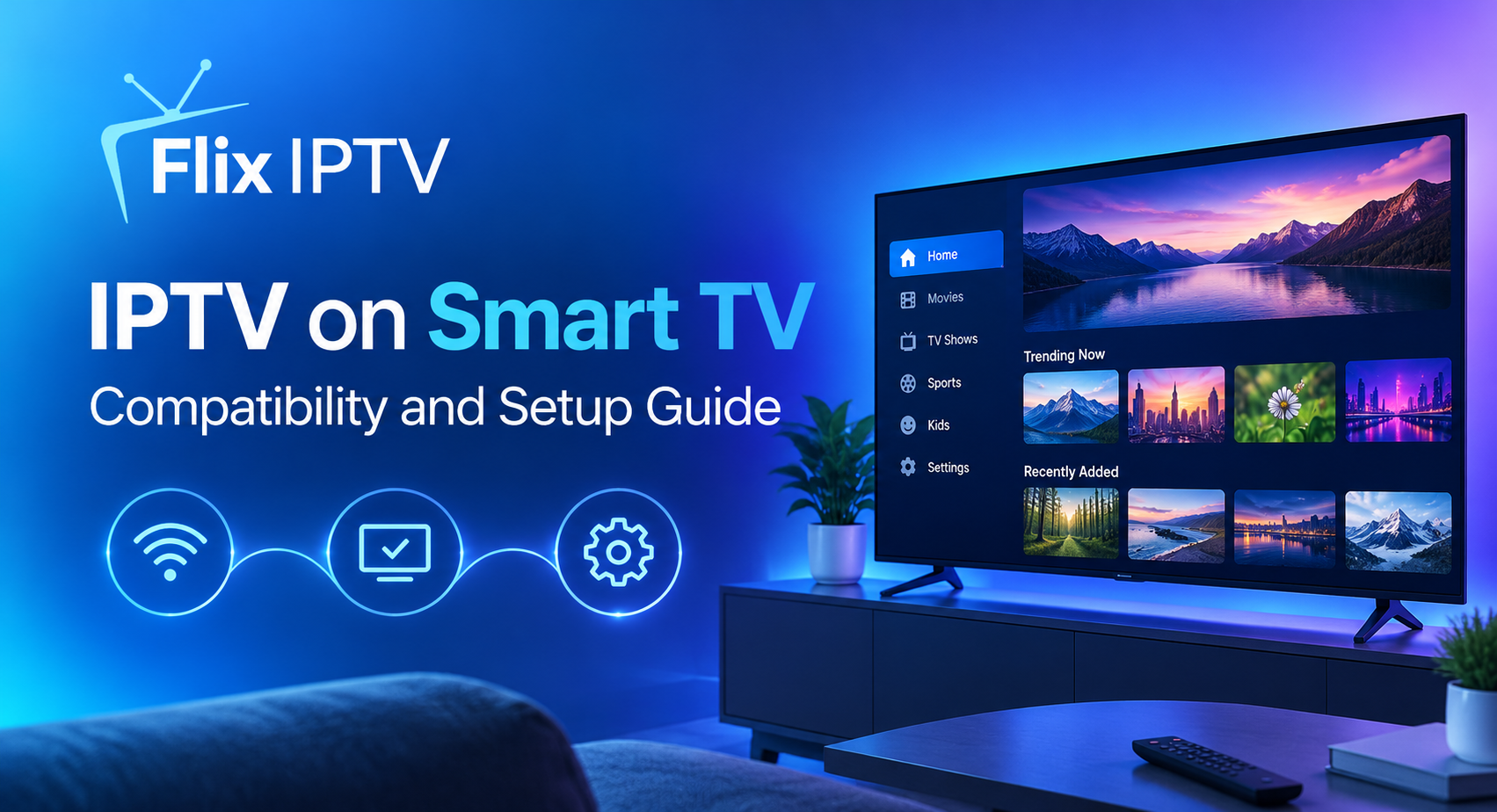
Flix IPTV runs through the SS IPTV application, which is available on every major streaming platform. The app store differs by device — Samsung Smart Hub, LG Content Store, Google Play, Amazon Appstore, Apple App Store — but once SS IPTV is installed, the experience is consistent across all platforms. The full channel catalog is available on every supported device without restriction.
- Samsung Smart TV — Install from Samsung Smart Hub. Tizen OS 2017 and later. No sideloading needed.
- LG Smart TV — Install from LG Content Store. Supported on webOS 4.0 and above (2019 onwards).
- Amazon Fire Stick — Install from Amazon Appstore. All Fire Stick models supported without developer mode.
- Android TV / Google TV — Install from Google Play. Covers Sony Bravia, Nvidia Shield, Chromecast and more.
- Apple TV — Install from the Apple App Store. Apple TV 4K recommended for highest quality.
- iPhone and Android — Install from the App Store or Google Play. Full catalog on any mobile device.
For the main home viewing setup, a large Smart TV with a wired ethernet connection delivers the best possible picture quality and streaming stability. For secondary screens or travel, an Amazon Fire Stick 4K plugged into any HDMI port brings the complete Flix IPTV catalog to any screen in any room with minimal setup overhead.
Flix IPTV Setup Guide: Complete Step-by-Step Installation
Follow these five steps in order. The SS IPTV installation guide on the Flix IPTV website provides platform-specific screenshots and additional detail for any step where a visual reference would help.
- Open the App Store on Your Device — Navigate to the correct app store for your platform and ensure you are signed in. Samsung uses the Smart Hub accessed by pressing the Home button on the remote. LG uses the LG Content Store. Amazon Fire TV uses the Appstore from the home screen. Android TV uses the Google Play Store. Apple TV uses the Apple App Store. Being signed in to a store account is required before any application can be downloaded.
- Search for and Install SS IPTV — Use the search function within the app store to find SS IPTV. Type the name using the on-screen keyboard — SS IPTV, with a space between the two words. Locate the application in the results and select Install or Get. The download and installation takes one to three minutes. Once complete, the app is ready to open.
- Launch SS IPTV for the First Time — Open SS IPTV from the app store results or from your device home screen where it will appear after installation. Accept any terms of service or permissions prompts on the first launch to reach the main application interface. You are now inside the media player that will load and display your Flix IPTV channel catalog.
- Add Your Flix IPTV M3U Playlist URL — Inside SS IPTV, navigate to the settings or content section and look for Remote Playlist, My Playlists, or Add Source. Open this screen and use the on-screen keyboard to enter your M3U URL exactly as it appears in your Flix IPTV welcome email — the URL is case-sensitive, so match each character carefully with the email visible on your phone. After typing the complete URL, confirm or save to submit it.
- Wait for the Channel List to Load — Then Watch — After saving the URL, SS IPTV retrieves the full Flix IPTV channel catalog from the servers. This takes between fifteen seconds and two minutes. A loading bar or spinner will be visible — do not close the app during this process. Once loading finishes, your full channel list appears. Select any channel to begin streaming. Your Flix IPTV setup is complete.
After Installation: Three Steps to a Better Streaming Experience
With streaming up and running, three post-installation steps improve the daily viewing experience significantly: setting up the Electronic Programme Guide, adjusting the buffer and quality settings, and creating a favourites list. None of these take more than five minutes, and the combined effect transforms the Flix IPTV setup from functional to genuinely polished.
Set Up the EPG (Electronic Programme Guide)
In the SS IPTV settings, find the EPG section and enter the EPG URL from your Flix IPTV account or welcome email. The Electronic Programme Guide overlays schedule information — current programme title, start and end time, and upcoming content — onto each channel in the guide view. With thousands of channels in the catalog, navigating by programme schedule rather than by channel name alone makes daily browsing significantly faster. Allow up to five minutes after entering the EPG URL for schedule data to populate fully.
Adjust Buffer Size and Stream Quality
In the SS IPTV player settings, increase the buffer size from its default value to a higher setting. A larger buffer smooths out minor fluctuations in connection speed and reduces the brief quality drops that occasionally affect HD streams during periods of high network load. For long live sport fixtures in particular, a higher buffer setting makes a perceptible difference to stream consistency. You can verify your current download speed at any time using a free tool such as Speedtest by Ookla — run the test directly on your streaming device to get the most accurate reading of the bandwidth available at that location.
When multiple quality tiers for the same channel appear in the catalog, always select the highest tier your connection reliably supports. The list below shows the connection speed each quality level requires.
- Standard Definition (480p) — Minimum 5 Mbps, recommended 8 Mbps. Wi-Fi acceptable. Suitable for secondary screens and mobile viewing.
- Full HD (1080p) — Minimum 15 Mbps, recommended 25 Mbps. Wired or strong Wi-Fi. Recommended quality tier for the main television screen.
- 4K Ultra HD — Minimum 30 Mbps, recommended 50 Mbps or above. Wired ethernet only. Best picture quality on 4K QLED and OLED displays.
Build Your Favourites List
Browse through the channel categories — Sports, Entertainment, Movies, News, Kids, and regional sections — and mark your most-used channels as favourites. On most platforms, this is done by long-pressing a channel in the list and selecting the favourite or bookmark option. A curated favourites list of ten to twenty channels means every viewing session begins with immediate access to the channels you actually use, rather than requiring a search through the full catalog each time.
Finding Your Channels in the Full Catalog
The Flix IPTV channel catalog inside SS IPTV is organised by category, making it straightforward to filter down to the type of content you are looking for before browsing individual channels. Sports channels cover football, cricket, Formula 1, NBA, NFL, tennis, rugby, boxing, and more, with dedicated broadcast networks from the UK, USA, Middle East, and South Asia all included. Entertainment, movies, news, kids, and international regional channels each have their own sections.
- Use category filtering first when browsing — it narrows the visible list from thousands of entries to a manageable section of relevant channels.
- Voice search on Android TV and Google TV devices is the fastest way to find a specific channel by name, especially for broadcaster names with multiple words.
- The EPG guide view shows current and upcoming content for each channel, making it possible to find a specific match or programme by when it airs rather than by channel name alone.
- If a channel appears offline or fails to load, look for an alternative feed of the same channel — most major sports and entertainment channels in the catalog have backup streams available.
- The same Flix IPTV subscription supports multiple devices simultaneously, so household members can watch different channels at the same time on separate screens.
Quick Fixes for Common Flix IPTV Setup Questions
The great majority of Flix IPTV setup questions have quick, clear answers. The following cover the situations that arise most often during a first installation.
Channels Not Loading After Entering the M3U URL
Re-enter the URL from scratch with the welcome email open on your phone, checking every character carefully. The URL is case-sensitive — a single mistyped letter or an accidental space at the start or end of the URL is the most common cause of a failed playlist load. Delete the existing entry completely before re-entering to avoid any inherited errors from the previous attempt.
Buffering or Stream Quality Drops
Switch to a wired ethernet connection as the first step. If the device is not close enough to the router for a direct cable, a powerline ethernet adapter allows the connection to travel through the building’s electrical wiring. In the SS IPTV settings, increase the buffer size and confirm that the selected quality tier matches what your connection speed can sustain. Use Speedtest by Ookla directly on the streaming device to get an accurate bandwidth reading before adjusting your quality settings.
SS IPTV Not Found in the App Store Search
Confirm the device is signed in to a valid account on the app store and that the region settings are configured correctly. Some regional app store variations affect which titles appear in search results. On Samsung, a full Smart Hub refresh through Settings can resolve app store indexing issues. If the app remains unavailable after these checks, the Flix IPTV FAQ includes device-specific guidance for each platform.
Help and Support for Your Flix IPTV Setup
The Flix IPTV FAQ page is the best first stop for any question that comes up during or after your Flix IPTV setup. It covers platform-specific installation steps, M3U URL management, EPG configuration, simultaneous device usage, subscription renewal, and stream quality optimisation — all organised by topic so the relevant section is easy to find. Checking the FAQ before contacting support resolves the majority of queries immediately.
For questions that need a direct answer from the team, the Flix IPTV contact page connects you with support staff who are familiar with every supported device platform and can help with device-specific installation issues, account queries, and anything else that the FAQ does not cover. Most queries receive a resolution within a single exchange. Visit flix-iptv.shop to subscribe and begin your Flix IPTV setup today.
Complete Flix IPTV Setup Checklist
- Flix IPTV subscription is active and the M3U URL from the welcome email is open on a second device.
- The device is connected to the internet and signed in to the relevant app store account.
- SS IPTV is installed from the correct platform app store and opens without errors.
- The M3U URL has been entered in Remote Playlist, saved, and the full channel catalog has loaded.
- A test channel is streaming in HD without buffering, confirming the Flix IPTV setup is complete.
- The EPG URL has been entered in SS IPTV settings and programme schedule data is populating correctly.
- Buffer size has been increased in SS IPTV player settings for smoother stream performance.
- A personal favourites list has been built for fast access to the most frequently watched channels.