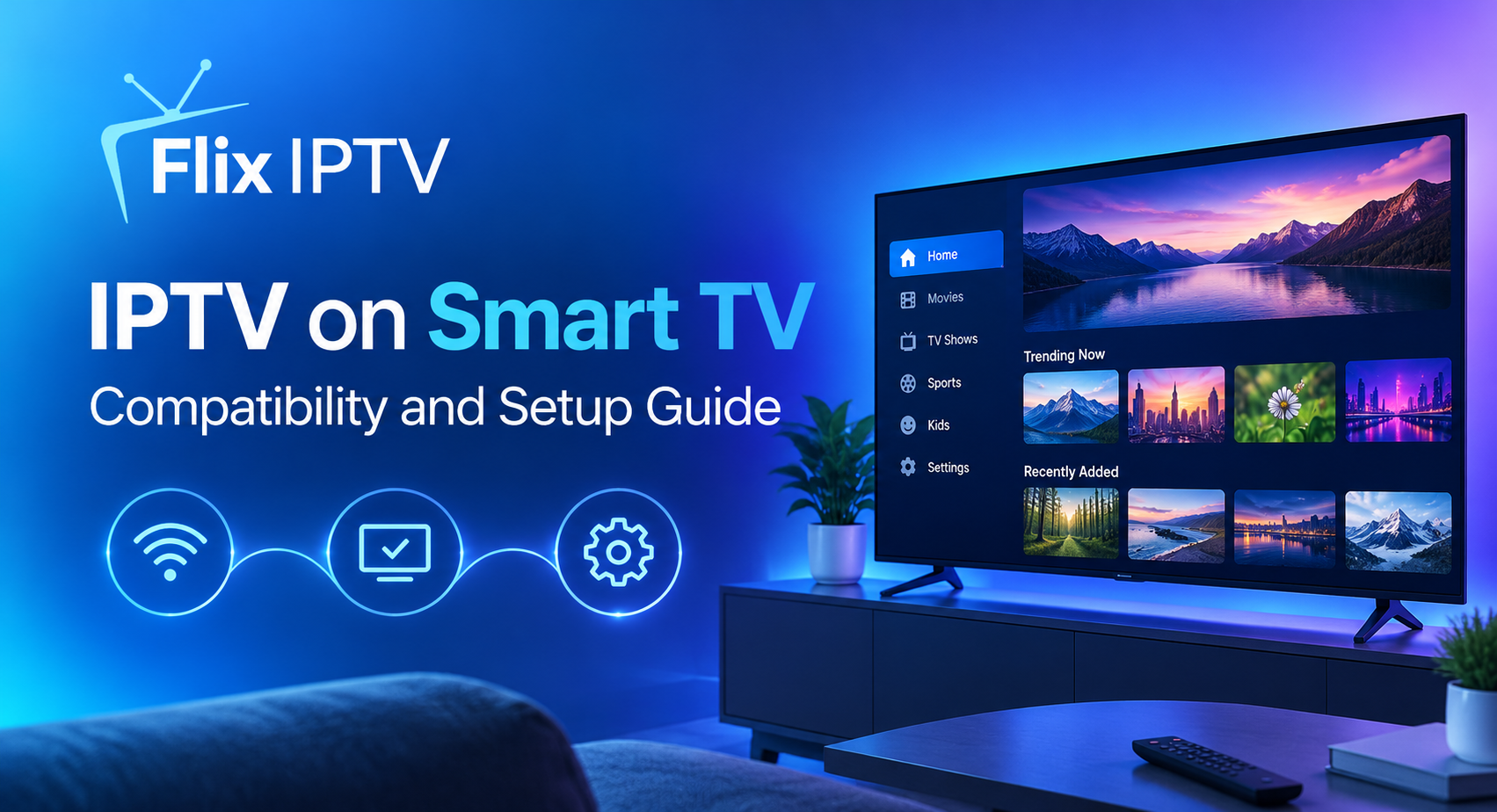

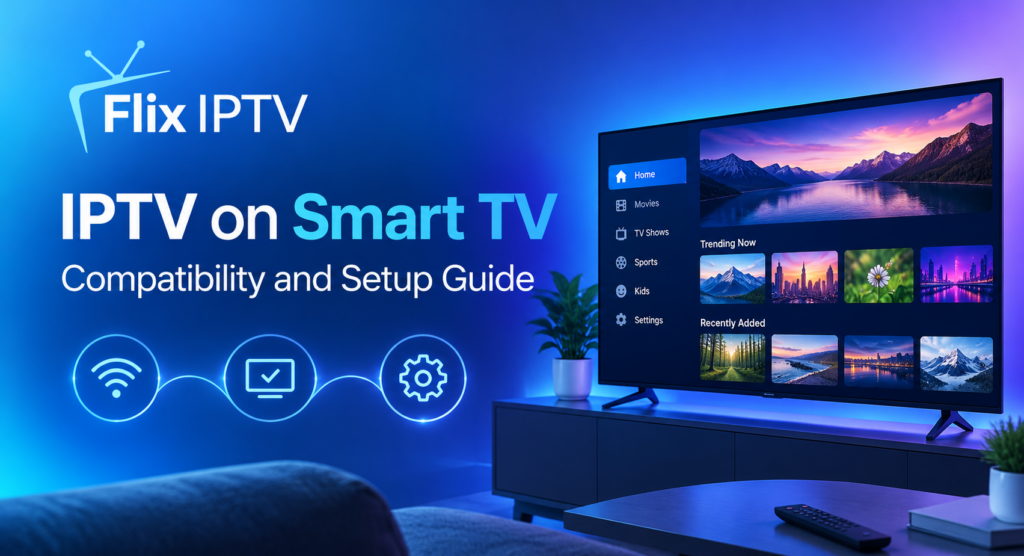
Watching television on a large screen is still one of the most comfortable ways to enjoy entertainment at home. With internet-based television, viewers can access live channels and other available streaming content through compatible devices instead of relying only on traditional television delivery methods. Understanding how IPTV on Smart TV works can help you determine whether your television supports the necessary applications and what you need before getting started.
Smart TVs come with different operating systems, app stores and hardware capabilities. As a result, the setup process may differ between Samsung, LG, Android TV and Google TV models. This guide explains compatibility, application selection, account information, common limitations and practical ways to improve your viewing experience.
What Is IPTV on a Smart TV?
Internet Protocol Television, commonly called IPTV, delivers television content through internet-based networks. Depending on the service, it may provide live television channels, catch-up content or on-demand programming.
Using IPTV on Smart TV can make viewing more convenient because compatible applications may run directly on the television. This means you might not need a separate streaming box, provided your TV supports the application required by your chosen service.
Using IPTV on Smart TV allows viewers to access compatible internet-based television services directly through their television, depending on the available applications and provider support.
However, IPTV is not a single universal application. Different providers use different platforms and access methods. Before subscribing, check what content is offered, which devices are supported and whether the service is authorised to distribute the channels you want to watch.
Which Smart TVs Support IPTV?
Compatibility depends on the television’s operating system, model year, region and available applications. A newer television does not automatically support every IPTV application.
Before setting up IPTV on Smart TV, check your television’s operating system, model number and available applications to confirm compatibility.
Samsung Smart TVs
Samsung Smart TVs commonly use the Tizen operating system. Available streaming applications vary by model and region, so check the Samsung Apps section on your television.
Search for a compatible application and review its official instructions before installing it. If the application you need is unavailable, ask your service provider whether another supported method exists for your television.
To use IPTV on Smart TV models from Samsung, check the official app store and confirm that your preferred application supports your specific television.
LG Smart TVs
Many LG Smart TVs use webOS. Applications can be installed through the television’s app store when they are supported in your region.
Before purchasing an IPTV subscription, verify that your selected service works with your LG model. Older televisions may have fewer available applications or may no longer receive updates for certain software.
Setting up IPTV on Smart TV devices from LG depends on the webOS version, regional app availability and the requirements of your chosen service.
Android TV and Google TV
Android TV and Google TV devices offer access to compatible applications through Google Play. The available selection depends on the device, region and app requirements.
Check that the application is compatible with your television and install it from an official source. You can also consult Google’s guidance on installing apps on Google TV.
Android TV and Google TV can offer several options for IPTV on Smart TV, but application availability and compatibility may vary between devices.
Older or Unsupported Smart TVs
Some older televisions may not support the application required by your IPTV provider. This does not necessarily mean you need to replace your television.
A compatible external streaming device may be an alternative. Before buying one, confirm that it supports the necessary application, has sufficient performance and receives security updates.
What Do You Need Before Setting Up IPTV?
Preparing a few things before starting can make the process easier.
Choosing a compatible application for IPTV on Smart TV helps ensure that your television can connect to the service and display supported content correctly.
A compatible television or streaming device: Check the operating system and confirm that the required application is available.
A reliable internet connection: Your connection should provide enough bandwidth for your preferred video quality and remain stable during playback.
A compatible IPTV application: Use an application recommended by your provider and download it from a trusted source.
Valid service details: Depending on the provider and application, you may need login credentials, a playlist URL or other authorised connection information.
An active subscription where required: Review the package details, supported devices, renewal terms and refund policy before paying.
If you are comparing available packages, visit the Flix IPTV subscription plans page for the relevant plan information.
How to Set Up IPTV on a Smart TV
Although the exact process varies by television, the following steps provide a general starting point.
A successful IPTV on Smart TV setup requires a compatible application, a reliable internet connection and valid service details when required.
Step 1: Connect Your TV to the Internet
Open your television’s network settings and connect it to your home Wi-Fi. If your TV supports Ethernet, a wired connection may provide more consistent performance.
Once connected, open a streaming application or another online service to confirm that the television can access the internet.
Step 2: Find a Compatible IPTV Application
Open your television’s official app store and search for an application supported by your provider. Review its compatibility, developer information and permissions before installing it.
When comparing applications for IPTV on Smart TV, consider ease of use, device compatibility, security and regular software updates.
Avoid unofficial downloads that ask you to disable security features or provide unnecessary personal information.
Step 3: Install and Open the Application
Follow the on-screen instructions to install the application. Open it after installation and review its setup screen.
Some applications are media players and do not provide television channels themselves. You may need a separate subscription or authorised content source to access programming.
Step 4: Enter Your Provider’s Details
If your application requests account credentials or playlist information, enter the details supplied through your legitimate service. Follow the provider’s setup instructions carefully.
Never share your password or subscription details publicly. If you receive an error, check for typing mistakes and confirm that your subscription and device are supported.
Step 5: Test Your Channels and Playback
After setup, test a few channels or programmes included in your package. Check picture quality, audio, loading time and whether playback remains stable.
If the application does not work, confirm that the television has internet access and that both the application and television software are up to date.
For more detailed device instructions, consult the Flix IPTV installation guide.
How to Choose the Right IPTV Application
The application you choose can influence how convenient and reliable the viewing experience feels. Consider these factors before installing one.
Device compatibility: Make sure the application supports your television’s operating system and model.
Ease of use: A clear interface, useful search tools and accessible menus can make everyday viewing easier.
Performance: Check whether the application runs smoothly on your device and whether other users report recurring technical problems.
Security and privacy: Download software from trusted sources and review the permissions it requests.
Provider compatibility: Confirm that the application supports the connection method and account details offered by your service.
Support and updates: An actively maintained application may be better positioned to address compatibility issues and security problems.
Remember that a media player and a television subscription are not necessarily the same thing. Installing a player alone does not guarantee access to live channels or on-demand content.
Common Problems When Using IPTV on Smart TVs
Even a compatible setup can experience occasional problems. Identifying the cause helps you choose an appropriate solution.
If IPTV on Smart TV stops working, check your network connection, update the application and confirm that your device remains supported.
The IPTV Application Is Missing From the App Store
The application may not support your television, operating system version or country. Check the developer’s compatibility information and ask your provider about supported alternatives.
Do not assume that an application available on one Samsung or LG model will also be available on every other model.
Login Details Are Not Working
Check that your credentials are correct and that you are using the appropriate login method. Some applications require different information, so compare the details on your account with the application’s instructions.
If the information is correct but access still fails, contact your provider to check subscription status or account restrictions.
Channels Take Too Long to Load
Slow loading may result from a weak Wi-Fi signal, a busy home network, application issues or a problem with the content source. Restart your television and router if appropriate, then test the connection again.
For additional troubleshooting advice, read our guide to fixing IPTV buffering and freezing.
The Picture Freezes or Playback Stops
First, determine whether the problem affects every channel or only one. If several online services are also struggling, your network may be responsible. If only one channel is affected, the issue could be related to that particular stream or the provider.
Avoid changing several settings at once. Test one solution at a time so you can identify what actually improves playback.
The Television Runs Slowly
Older televisions may have limited memory or processing power. Close unused applications, restart the device and install available official software updates.
Many IPTV on Smart TV problems can be resolved by checking application compatibility, restarting the television and confirming that your internet connection is working properly.
If performance remains poor, check whether the application developer recommends a different device. Replacing the television is not always necessary.
Tips for a Better Smart TV Viewing Experience
A few simple habits can make your setup easier to maintain.
For a smoother IPTV on Smart TV experience, keep your software updated and use a reliable network connection whenever possible.
- Keep your television’s operating system and applications updated.
- Place your router where the television can receive a strong wireless signal.
- Consider Ethernet if Wi-Fi performance is inconsistent.
- Close applications that are not being used.
- Use strong, unique passwords for your accounts.
- Avoid untrusted applications and suspicious installation files.
- Review subscription terms and supported-device information before renewing.
- Contact your provider when an issue appears to be account-related rather than a television problem.
You can also explore the IPTV channel list to understand the types of channels advertised by the service. Confirm regional availability and subscription requirements before relying on any particular channel being accessible.
Is IPTV on a Smart TV Better Than Using an External Device?
A built-in Smart TV application can reduce the number of devices and cables around your entertainment area. It may also make switching between streaming services more convenient.
An external streaming device, however, may provide access to applications that are unavailable on your television. It can also be useful when an older TV no longer receives the updates required by newer software.
Neither option is automatically best for everyone. The right choice depends on compatibility, cost, application performance and your preferred features. Check the specifications before purchasing additional equipment.
Frequently Asked Questions
Can I use IPTV on any Smart TV?
No. Compatibility depends on the television’s operating system, model, region and the applications supported by your provider. Check these details before subscribing.
Do I need a separate IPTV box?
Not always. If your Smart TV supports a compatible application, you may not need an additional device. An external streaming device can be an alternative when the television lacks suitable software.
Does installing an IPTV app provide free channels?
Not necessarily. Some applications are only media players and require a separate authorised content source or subscription. Review the application’s description and your provider’s terms.
Why is my IPTV application unavailable on my television?
It may not support your TV model, operating system version or region. Check the official app store and the developer’s compatibility documentation.
Can I watch IPTV over Wi-Fi?
Yes, if your television and service support it. A strong, stable connection is important. Ethernet may be helpful if wireless performance is inconsistent.
Where can I get help with IPTV setup?
Start with the application’s official instructions and your service provider’s support resources. You can also visit our FAQ page or contact us for further assistance.
Final Thoughts
Using IPTV on Smart TV can provide a convenient way to access internet-based television without adding unnecessary equipment. The key is to check compatibility, select a trustworthy application, use valid service details and maintain a stable network connection.
With the right application and compatible equipment, IPTV on Smart TV can provide a convenient way to access authorised internet-based television content.
Before purchasing a subscription, verify the available channels, supported devices and package conditions. If you need more information about Flix IPTV, explore the subscription plans and review the setup resources available on our website.