
Introduction
Internet television has become an increasingly popular way to access video content through compatible devices and internet connections. IPTV, which stands for Internet Protocol Television, allows television content to be delivered through IP networks rather than exclusively through traditional cable or satellite broadcasting.
However, getting started with IPTV can sometimes be confusing, especially if you are using the technology for the first time. You may have questions about compatible applications, device requirements, internet connections, account activation, or how to resolve playback problems.
The good news is that setting up IPTV can be straightforward when you follow the correct instructions for your device.
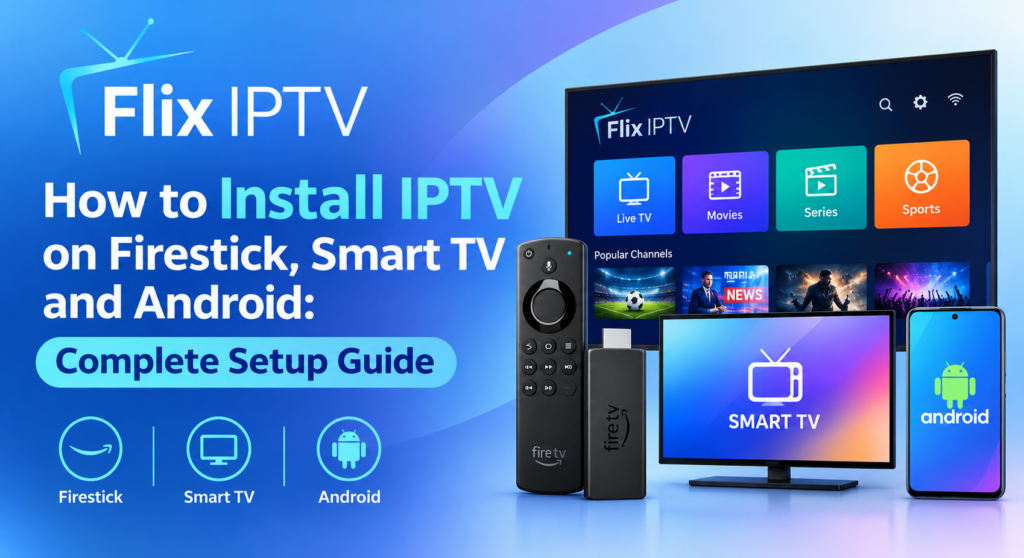
In this comprehensive guide, we explain how to prepare Amazon Fire TV devices, Smart TVs, Android TV devices, Android smartphones, and tablets for IPTV. We will also cover common installation errors, streaming improvements, device compatibility, and important considerations before choosing a provider.
Whether you are researching IPTV for the first time or troubleshooting an existing setup, this guide will help you understand the process.
What Do You Need Before Installing IPTV?
Before starting the installation process, make sure you have the necessary equipment and information.
1. A compatible device
The first requirement is a device supported by your chosen IPTV service. Depending on the provider, compatible devices may include Amazon Fire TV, Smart TVs, Android TV, Google TV, smartphones, tablets, and computers.
Compatibility varies between applications and providers, so always check the supported devices before subscribing.
2. A stable internet connection
IPTV relies on an IP network to deliver video content. A stable internet connection can help reduce buffering and interruptions.
You can use Wi-Fi or a wired Ethernet connection if your device supports it. If several people in your household use the internet simultaneously, consider how much bandwidth is available during streaming.
3. A compatible application
Some IPTV services require a dedicated application, while others work through a supported player or platform.
Download applications through official application stores or other authorised sources. Avoid unfamiliar software that requests unnecessary permissions or makes suspicious claims.
4. Your subscription or account information
Depending on the service, you may need an active subscription, account login, or other activation information.
Confirm the provider’s instructions before entering your details. Never share passwords or private activation information publicly.
If you are researching subscription options, visit the Flix IPTV Pricing Plans page to review the information published on the website.
How to Install IPTV on Amazon Firestick and Fire TV
Amazon Fire TV devices are commonly used to access internet-based entertainment on a television. However, the exact setup process depends on the application and whether the provider supports your particular device.
Follow these general steps.
Step 1: Connect Your Fire TV Device
Connect your Fire TV device to an available HDMI port on your television and follow the manufacturer’s instructions to complete the initial setup.
Make sure the device is connected to your home Wi-Fi network or a supported wired network adapter.
Test your internet connection by opening another online application.
“If you need help connecting your device and configuring Wi-Fi, follow the official Amazon Fire TV setup instructions.”
Step 2: Check for a Compatible IPTV Application
Open the official application store on your Fire TV device.
Search for an application supported by your chosen provider. Before installing it, review the application name, publisher, compatibility information, and permissions.
Do not assume that every IPTV application supports every provider or subscription.
If an application is unavailable for your device, check the provider’s official documentation for an authorised alternative.
Step 3: Install the Application
Select the compatible application and follow the on-screen instructions to install it.
Once installation is complete, open the application and review its setup options.
Some applications are video players rather than content providers. In these cases, you may need a separate, authorised service to supply the television content.
Step 4: Complete the Setup Process
Follow the instructions provided by your IPTV service or application.
Depending on the platform, this may involve signing in to an account or completing another supported activation process.
Enter your information carefully and ensure you are using the correct application.
Step 5: Test Your IPTV Connection
After setup, check whether the application opens correctly and whether the content included in your service is accessible.
If playback does not work, verify your internet connection, account status, application compatibility, and the availability of the selected content.
For further assistance, consult the Flix IPTV Installation Guide.
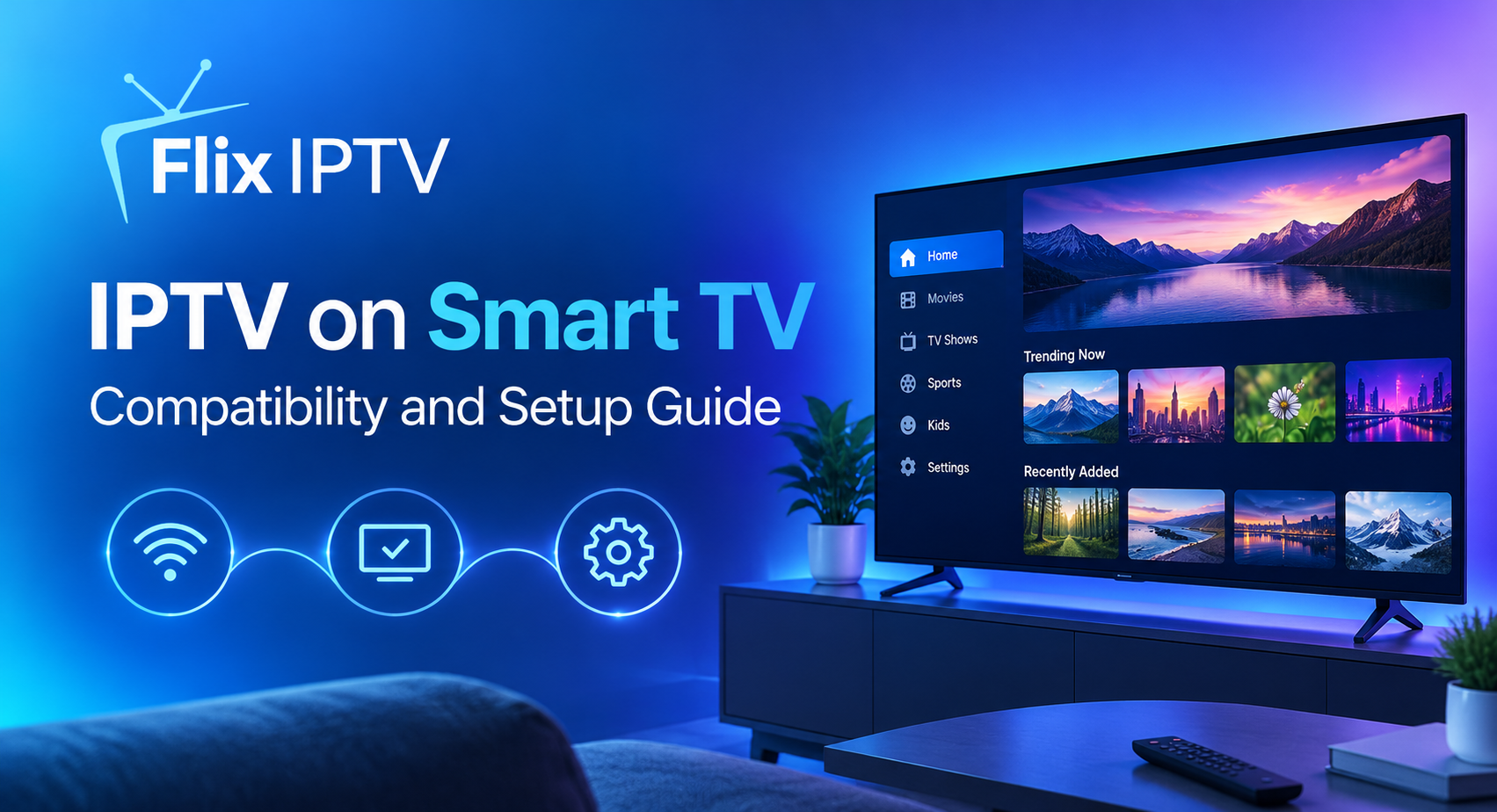
How to Install IPTV on a Smart TV
Smart TVs allow users to access online applications directly through their televisions. Nevertheless, application compatibility differs between manufacturers, models, and operating systems.
Step 1: Identify Your TV Operating System
Before installing an application, identify your television’s brand and model.
Different televisions may use different operating systems, including Android TV, Google TV, Tizen, or webOS.
An application available on one platform may not be available on another. Check the application’s official compatibility information before proceeding.
Step 2: Connect Your Smart TV to the Internet
Open your television’s network settings and connect to your home Wi-Fi or Ethernet network.
If possible, place your router in a suitable location to provide a stable connection.
After connecting, test another internet-based application to confirm that the television can access online services.
Step 3: Open the Official Application Store
Use your television’s application store to search for an IPTV application supported by your service.
Review the application details and confirm that it is compatible with your television.
Install the application using the manufacturer’s standard process.
Step 4: Follow the Provider’s Instructions
Open the application and follow the supported setup procedure.
If an account or activation process is required, use the information supplied by your provider. Do not enter your credentials into unfamiliar websites or applications.
Step 5: Check Playback
Once setup is complete, test the available content.
If the application opens but channels or videos do not play, check your subscription, internet connection, and regional content availability.
For additional setup information, visit the Flix IPTV Installation Guide.
What If Your Smart TV Does Not Support IPTV?
If your television does not support the required application, you may be able to use a compatible external streaming device.
Before purchasing additional equipment, confirm that both the device and your chosen IPTV service support the same platform.
This simple compatibility check can help you avoid unnecessary expenses.
How to Install IPTV on Android TV and Google TV
Android TV and Google TV devices provide access to supported applications through their respective application stores.
Although the setup process is similar across many devices, menus and available applications can differ.
Step 1: Connect Your Device
Connect your Android TV or Google TV device to your television and complete its initial setup.
Connect it to your home network and check that internet access is working correctly.
Step 2: Find a Supported Application
Open the official application store and look for software supported by your provider.
Check the application requirements and ensure it is suitable for your device.
Step 3: Install and Open the Application
Select the application, install it, and open it once installation finishes.
Follow the provider’s instructions for account access or activation.
Step 4: Verify the Service
Check whether the content included in your subscription is available and plays correctly.
If you experience problems, check the application’s compatibility, internet connection, and account status before changing other settings.
You can also read the Flix IPTV FAQ page for further information.
How to Set Up IPTV on an Android Phone or Tablet
Some IPTV services support Android smartphones and tablets, allowing users to access compatible content on a mobile screen.
The setup process generally follows these steps.
- Connect your phone or tablet to a reliable internet connection.
- Open the official application store.
- Search for an application supported by your provider.
- Review the application details and compatibility requirements.
- Install the application and open it.
- Follow the provider’s authorised account or activation process.
- Test playback using content included in your subscription.
If the application does not work, check whether your Android version is supported and whether the application requires an update.
Be cautious when downloading APK files from unfamiliar websites. Unverified applications can expose your device and personal information to security risks.
How to Choose the Right IPTV Subscription
Installing an application is only one part of the process. You should also understand what your chosen service provides and whether it meets your requirements.
Before subscribing, consider the following factors.
Check the Available Channels
Make a list of the channels and content categories you want to access.
Then compare your requirements with the provider’s published information. Availability may vary by country, subscription, and content licensing arrangements.
You can review the Flix IPTV Channel List to explore the channel information available on the website.
Always confirm important channel details before purchasing a subscription.
Compare Subscription Plans
Review the subscription duration, price, included features, renewal conditions, and cancellation or refund policies.
The lowest advertised price is not necessarily the best choice if the plan does not meet your requirements.
Visit the Flix IPTV Pricing Plans page to review the available options and confirm the current terms before ordering.
Confirm Device Compatibility
Check that your device, operating system, and preferred application are supported.
If you plan to use more than one device, confirm whether the provider’s terms allow your intended usage.
Check Content Authorisation
Choose a provider that has the necessary rights to distribute its advertised television channels and video content in your location.
A large channel catalogue or attractive subscription offer does not, by itself, establish that a service is authorised to distribute every listed programme.
Look for Clear Customer Support
Before subscribing, check how the provider handles installation questions, account issues, and technical problems.
Clear setup instructions and accessible support can make the overall experience easier.
If you need information about Flix IPTV, visit the Contact Us page.
Common IPTV Installation Problems and How to Fix Them
Even after following the correct installation steps, you may occasionally experience problems. The following checks can help identify the likely cause.
Problem 1: The IPTV Application Is Missing
Possible cause: Your device or operating system may not support the application.
What to do: Check the manufacturer’s application store and the provider’s official compatibility information. If the application is unavailable, ask the provider about supported alternatives.
Problem 2: The Application Will Not Open
Possible cause: The application may be outdated, incompatible, or experiencing a temporary error.
What to do: Restart your device, check for official software updates, and try opening the application again. If necessary, consult the application developer’s troubleshooting guidance.
Problem 3: IPTV Keeps Buffering
Possible cause: Weak Wi-Fi, network congestion, device limitations, or provider-side streaming issues.
What to do: Test your internet connection, improve your Wi-Fi signal, pause large downloads, and consider Ethernet if supported.
If other online services work normally but the IPTV service continues to fail, contact the provider to investigate a possible service-side issue.
Problem 4: Login or Activation Fails
Possible cause: Incorrect account details, an inactive subscription, or an unsupported activation method.
What to do: Carefully check your information and confirm that your subscription is active. Follow the provider’s official instructions and avoid sharing sensitive account information.
Problem 5: Some Channels Are Missing
Possible cause: The channels may not be included in your subscription, may be unavailable in your region, or may be affected by a service-side issue.
What to do: Check the published channel list and your subscription terms. Contact the provider if the issue continues.
Problem 6: IPTV Works on One Device but Not Another
Possible cause: Differences in application compatibility, device software, network settings, or supported features.
What to do: Check the requirements for each device and compare their network connections. Make sure you are following the correct installation instructions for each platform.
For more troubleshooting advice, visit the Flix IPTV FAQ.
Tips for a Better IPTV Viewing Experience
After completing the installation, a few simple practices can help you maintain a more reliable setup.
Keep your software updated. Install application and device updates from trusted sources when available.
Use a stable network. Check Wi-Fi coverage and consider a wired connection if your device supports it.
Protect your account. Use strong passwords where supported and avoid sharing private activation information.
Check service compatibility. Before replacing a device or installing a different application, confirm that it is supported.
Understand your subscription terms. Keep a record of your plan, renewal conditions, and available support options.
Troubleshoot systematically. Test your network, application, device, and account separately instead of changing many settings simultaneously.
These steps can help you identify problems more efficiently and avoid unnecessary changes to your equipment.
Frequently Asked Questions
Can I install IPTV on any Smart TV?
No. Compatibility depends on your television’s operating system, model, available applications, and provider requirements. Check compatibility before subscribing.
Do I need a separate IPTV application?
It depends on the service. Some providers support dedicated applications, while others work with compatible third-party players or platforms. Follow your provider’s official instructions.
Can I use IPTV on Firestick and Android?
Some IPTV services support Amazon Fire TV and Android devices. Confirm compatibility with your specific device and use an authorised installation method.
Why does IPTV buffer even when my internet is fast?
Download speed is only one factor. Wi-Fi interference, network congestion, packet loss, device performance, and provider infrastructure can also affect playback.
How can I find out which channels are available?
Review the provider’s published channel list and confirm that the channels you want are included in your subscription and available in your region.
Visit the Flix IPTV Channel List for the channel information published on our website.
Where can I find subscription information?
Visit the Flix IPTV Pricing Plans page and check the current prices, subscription terms, and included features.
What should I do if installation still fails?
Read the Flix IPTV Installation Guide and FAQ page. If the issue persists, use the Contact Us page to find the available support options.
Conclusion
Installing IPTV on Firestick, Smart TV, Android TV, or a mobile device begins with choosing compatible software, preparing a stable internet connection, and following the correct setup instructions.
Before purchasing a subscription, check device compatibility, available channels, pricing, renewal conditions, and content authorisation. These checks can help you choose a suitable service and avoid common installation problems.
For more information, visit the Flix IPTV homepage, explore the available pricing plans, and review the channel list.
If you need setup assistance, consult the installation guide or FAQ page. For additional questions, visit the Flix IPTV contact page.
You can also explore the Flix IPTV Blog for more educational articles, troubleshooting advice, and internet television guides.